telus
130 Topics
My telus.net email was deleted by Telus yesterday
After cancelling my Norton Online Security account by phone with Telus yesterday I discovered my Google workspace Telus.net email had been deleted. It appears no other service has been affected. I have Internet, iCloud email, Gmail etc still active but I need my historical emails from the Telus.net address. I can't log in to Telus. I had to dial zero and get transferred to an agent yesterday who said it would take 24 to 48 hours to recover my email address. Has anyone had similar issues?70Views1like5Comments
Unable to escalate damaged TELUS infrastructure complaint
I am not a TELUS customer and need assistance escalating a complaint regarding damaged TELUS infrastructure at my property. On Thursday, a delivery truck knocked down TELUS communications lines (installed by previous homeowners), and they are now hanging low over a shared driveway. I spent over an hour with TELUS arranging a repair appointment that evening for the earliest they could offer: this Sunday from 11 a.m.–1 p.m. TELUS sent me appointment reminders on both Friday and Saturday, and I confirmed the appointment. No technician attended today, and I received no cancellation or notification; I even received a notification saying the tech was on their way at 1030am. I then spent about two hours on the phone with TELUS Tech Support trying to find out what happened. I was repeatedly told they couldn't provide information because I am not a TELUS customer, and I was eventually told there was no record of the original ticket, despite TELUS sending multiple appointment reminders and receiving my confirmation. A new appointment has now been scheduled for Wednesday from 4–6 p.m. After that call, I also contacted TELUS's 310-CUTS emergency repair line for damaged infrastructure. They said they couldn't help and directed me back to Tech Support. I have now spent more than three hours on the phone, lost much of today waiting for a technician who never arrived, and the damaged lines remain hanging over our shared driveway. My neighbours need the lines to be repaired ASAP, as they have a large trailer they need to bring through the driveway. I would like to formally escalate this to TELUS Management. However, the online complaint process requires a My TELUS login, which I cannot access because I am not a TELUS customer. TELUS and this situation are running me ragged. Could a TELUS representative please contact me privately so I can provide the ticket/appointment information, screenshots and my full written complaint?78Views0likes3Comments
TELUS TV has a mind of its own
Beyond the fact that TV programming has become mundane and the addition of these ridiculous one show channels are useless, the biggest thing that has me wanting to cancel TELUS TV is that their hardware has a mind of it’s own. The box powers down on its own even after just a few minutes of use. Now it changes to previously viewed channels on its own and today it interrupted my viewing by randomly opening YouTube, unprompted. It can sometimes take several minutes to have the TV turn on or the channel guide to populate. This is on GB Pure Fibre (though I’m paying for that speed I only get 400 up/down). At this point I am ready to cancel and pay the cancellation fee. It’s a huge cost for such horrible service. I can get everything I need from CBC Gem and other apps for a fraction of the cost without having to endure using a faulty product.92Views1like1Comment
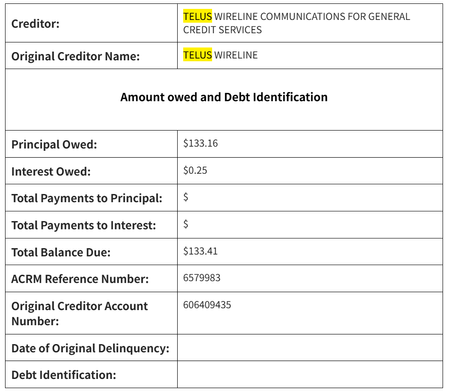
A closed account causing a collection on my credit report
A collection agency is now coming after me for an account that I have closed and payed off. I closed my home internet service account back in Dec 2025, and have been using another provider since then. An email from Telus clearly shows that I have no remaining balance to pay as of Feb 2026. Another post I found on the forum seem to be a similar case: https://forum.telus.com/discussions/my_home_services_and_devices/collection-agencies-acrm--gcsi--gcs/178391 Currently, as I'm not in Canada, I cannot even contact customer service via the chat feature because I have no active account with Telus. If anyone have any clue of how to get in contact with Telus, please let me know. Or if someone from Telus support can help me with this case, it'd be even better.48Views0likes0Comments
New Phone Number Suspended
Hello, I bought a brand new cell phone and a new number two days ago as the company I’m currently working for I will be leaving and they will be taking their cell phone and their number when I leave. Within less than 24 hours of getting my new number I changed all of my passwords and sign in codes for various banking and other information and I woke up the following morning and Telus had suspended my entire account and placed my brand new number on hold pending a fraud investigation. I’ve spoken to numerous TELUS representatives in the last 48 hours and I was informed that I had to resubmit proof of identity to a fraud email address from TELUS. I did that and have not heard anything back since and have followed up numerous times. I called a TELUS representative again this morning and all they could tell me was that there’s nothing they can actually do and then I just have to wait. Unfortunately I do not have time to wait and I need my new phone and number to be working. Can you tell us please advise what exactly I need to do further to prove I am who I say I am and when this will be resolved. I really do not want to have to go to a different cell phone provider, but if I don’t see movement on this, you will force me to do so as I need a working phone.83Views0likes2CommentsReceived a collections notice for an account closed 2 years ago with a $0 balance
I closed my TELUS account in May 2024 and received a final email confirming that my account balance was $0. Now, almost 2 years later, I received: an email from TELUS saying I have a bill credit due to an overpayment on my home services account, and an email from ACRM Collections claiming I owe money to TELUS. I’m confused about how I can both owe money and have a credit at the same time. What should I do in this situation? Would it make sense to email ARM a screenshot of the TELUS overpayment notice and my final $0 balance email to dispute the debt? Also, nothing related to collections is showing on my credit report yet. Has anyone dealt with something similar?Solved418Views0likes4Comments
TELUS Internet Outage: No Service for Several Days
No home internet for the past few days. The service was already spotty before this, and now there is no connection at all. When I check the TELUS Service Status using my address, it shows no service disruption. However, when I call customer service, I’m told that my area is impacted. I’m not sure whether this issue is only affecting my home or is widespread around the 24 Ave NW and University Drive area. Can someone from TELUS please provide an update, at least on what is happening and when we can expect service to be restored? This is extremely frustrating, especially for those of us who are working from home. We'd appreciate an update and an estimated restoration time.182Views0likes2CommentsStreaming on TELUS - September 2026
Hey everyone! Hope you're doing well and enjoying the end of summer! September is right around the corner, and another month means another new batch of great movies and shows to check out on Optik TV! Remember, you can catch all the hottest new content as part of our awesome Stream+ package to get Netflix Premium, Disney+ and Prime Video all at a discounted rate! Let's take a look at some of the highly anticipated titles streaming in September as well as what I'm hooked on now! Coming in September September 2 - Star Wars: The Mandalorian and Grogu - Disney+ The feature length Star Wars film featuring everyone's favorite Mandalorian bounty hunter and his young apprentice. September 3 - The Gentlemen (Season 2) - Netflix The long awaited return of the hit action comedy series from Guy Ritchie. Most Anticipated Star Wars: The Mandalorian and Grogu - Disney+ Finally, the highly anticipated new Star Wars movie hits Disney+! The Mandalorin and Grogu picks up after the third season of the hit Disney+ series, with the titular bounty hunter Din Djarin and his foundling Grogu, doing what he does best: hunting down neo-imperialist warlords of the former Galactic Empire. His latest mission finds him chasing a dangerous target, and the only way he can get intel on where to find him is by rescuing Rotta the Hutt, son of the legendary Jabba! I caught this in theaters and definitely enjoyed it. All the makings of a classic Star Wars movie are here, from fantastic sets and creatures to charming comedy and plot twists you'll never see coming. The heartwarming relationship between Mando and Grogu shines in this fun story. Definitely a great family film to enjoy, and one that no Star Wars fan should miss. Catch Star Wars: The Mandalorian and Grogu when it drops September 2 only on Disney+! What I'm Watching Now Reacher (Season 4) - Prime Video I'm a huge fan of the Reacher series starring Alan Ritchson. Now that the fourth season is finally airing on Prime Video, I can safely say it's one of the best political action thriller series running today. Fans of Ritchson's portrayal of the hulking ex-military police officer will no doubt love his continued physical dominance and deadpan delivery. Season 4 finds the always-wandering Reacher in Philadelphia, and naturally danger and mystery find him once again. An encounter with a visibly distressed woman on the subway finds Reacher dragged into a conspiracy bigger than even he could ever imagine. I love this series for its plot twists and sharp writing, combined with its brutal, realistic fight scenes and action. That along with Ritchson's portrayal of the title character being so undeniably charming that you can't help but root for him as he works to get out of whatever jam he's in. Episodes are airing weekly and will run through mid September, so you have time to catch up on the newest season of the fantastic Reacher, now streaming on Prime Video! ICYMI: Not subscribed to Stream+ yet? No worries! You can add it to your Optik TV package at any time! Find out more here! 127Views0likes0Comments
Property Damage From Recent Cable Installation
We had Telus workes installing the new cables at our house last week. We noticed that they ruined part of our front yard, not only the grass but small plants and bushes. By that day I was upset, but moved on. Today, we had a rainy afternoon around here. We were away from home, and by the time we got back, our basement was flooded. Water was coming from the basement window. It was caused by the new Telus cable that wasnt dig deep enough, and was left behind with a slope coming down to my basement window. Before then, that area around the window would be completely dry after each rain, since we had a slope in the opposite direction and the plants were protecting it. We had to rebuild the slope to avoid more water coming down during the rain, and it was easy to spot Telus’ new cable. I’d appreciate to hear back from you on what you are going to do to remedy this situation.317Views0likes8Comments