telus
13 TopicsTELUS Scam Protection powered by Norton; Everything you need to know
As AI-driven phishing and scam attempts become increasingly sophisticated and harder to spot, we’ve partnered with cybersecurity leaders at Norton to build TELUS Scam Protection directly into the My TELUS app, giving you peace of mind. Here's a breakdown of how it works, what’s included, and how to set it up. How It Works (The 4 Core Features) Once enabled in the My TELUS app, the protection runs in the background without needing separate app downloads or continuous logins: Safe Call: Screens incoming calls to auto-block known scams and label calls as spam or a verified business before you pick up. Safe SMS: Reviews incoming texts (SMS/MMS) from unknown senders to help detect and flag potential scams or phishing attempts, so you can avoid clicking risky links. Safe Email: Safe Email proactively scans up to 5 connected email accounts in your inbox and flags suspicious emails to help you know if it’s potentially a scam before opening it. AI Scam Assistant: Available 24/7 in the My TELUS app. You can ask cyber safety questions, paste text, or upload screenshots of suspicious messages (including encrypted chats like WhatsApp, iMessage, Messenger, or Instagram) and get guidance on potential scams and help you decide whether it's safe to engage. Plan Details & Compatibility Detail Information New Consumer Data Plans Included at no extra cost (starting October 20, 2026). Existing or Select Plans Addable for $3/month inside My TELUS—no rate plan change required. Device Requirements Android 10.0+ (with Google Play Store) or iOS (current or previous 2 versions). App Requirements Latest version of the My TELUS app required for initial setup. Quick FAQs Will Safe Call block legitimate calls from my doctor, pharmacy, or delivery service? Safe Call is designed specifically to block known scam numbers while labeling legitimate organizations as verified businesses. On rare occasions where a number is mislabeled, you can check your call log/voicemail and report the mislabel directly in the My TELUS app to continuously improve system accuracy. Does Safe SMS automatically scan my WhatsApp or iMessage chats? Safe SMS covers standard SMS/MMS text messages. Because third-party messaging apps like WhatsApp or iMessage use end-to-end encryption, Safe SMS cannot automatically read them. However, you can screenshot or copy any suspicious message into the AI Scam Assistant inside My TELUS for instant feedback. Does this replace device antivirus or identity theft insurance? TELUS Scam Protection is built to detect and warn against active scam calls, text links, and emails. It does not scan for local device viruses or include financial reimbursement/identity theft insurance (if you need full device malware protection, check out TELUS Online Security). How to Activate in 3 Easy Steps Open and log in to the My TELUS app. Go to the Plans & Devices tab and tap the Scam Protection tile. Follow the on-screen prompts to grant required permissions for Safe Call, Safe SMS, and Safe Email. Once permissions are set, you can close the app. Protection remains active 24/7 in the background. For full details and troubleshooting guides, visit telus.com/ScamHelp FR version36Views0likes0CommentsTransfer Your Phone Number to TELUS
Moving your existing phone number from another carrier to TELUS preserves your contact information and ensures uninterrupted service. The transfer process completes in 2-3 hours. What You Need Before Starting New TELUS SIM card Current provider's SIM card (must remain active during transfer) Previous provider's account number OR your device's IMEI number Device you'll use with TELUS Find Your IMEI Number Dial *#06# on your current device to display the IMEI number instantly. Complete the Transfer Visit www.telus.com/transfernumber and log in to your account Choose whether to provide your previous account number or IMEI number Click "Get Started" and enter the requested information Review all transfer details for accuracy, then click "Submit" Wait for an SMS confirmation from your old provider (arrives on your current SIM card) Reply "YES" to the confirmation message within 90 minutes Insert your new TELUS SIM card into your device Wait for the TELUS welcome message confirming the transfer is complete (takes up to 2.5 hours) Important Transfer Requirements Keep your current phone number active throughout the entire process. Canceling service with your old provider before the transfer completes will result in losing your phone number permanently. If You Need Assistance Contact TELUS through Facebook or visit the Mobility community forums for transfer support. You can also watch the step-by-step video tutorial on the TELUS YouTube channel for visual guidance. Version Fr4.9KViews0likes0CommentsTravel Checklist For TELUS Mobility
Planning to travel soon? Don't forget to configure your TELUS mobile services to avoid service interruptions and unexpected charges. Complete these setup steps before departure. Pre-Travel Setup Enable Easy Roam Add Easy Roam to your account to use your existing plan's data, minutes, and texts while traveling. This service activates automatically when you connect to a network in supported countries. Suspend Unused Lines Request a Mobility Vacation Suspension for devices you won't bring on your trip. This temporary service pause reduces your monthly bill while maintaining your phone number and plan. Configure Billing Access Enroll in eBilling to view statements from any location with internet access Set up or update pre-authorized payments to ensure bills process on time during your absence Verify your payment method is current and has sufficient funds If You Need Last-Minute Help Contact TELUS through our Facebook or X / Twitter accounts for further assistance. Additional Resources Review our Home Services Vacation Suspension article if you also need to prepare TELUS internet, TV, or home phone services before traveling. Version Fr420Views0likes0CommentsPrevent Accidental Roaming Charges
Mobile devices automatically connect to the strongest available network signal. Near international borders, particularly along the U.S.-Canada boundary, your phone may connect to foreign towers and trigger roaming charges for services normally included in your plan. Disable Automatic Network Selection iPhone or iPad Open Settings Tap "Cellular" Select "Network Selection" Turn off "Automatic" to start a network scan Select "TELUS" from the available networks list Android Devices Open Settings Select "Network & Internet" Tap "SIMs" Uncheck "Automatically select network" Wait for the network scan to complete, then tap "TELUS" Turn Off Data Roaming iPhone or iPad Open Settings Select "Cellular" Tap "Cellular Data Options" Switch "Data Roaming" to off Android Devices Open Settings Select "Network & Internet" Tap "SIMs" Switch "Roaming" to off When to Re-Enable These Settings Enable automatic network selection and data roaming when traveling internationally if you want to use TELUS Easy Roam or other roaming services. Your device needs these features active to connect to foreign networks. Reapply these settings after device resets, network settings resets, switching to a new phone, or installing software updates. Updates may restore default network selection preferences. Version Fr1.2KViews0likes0CommentsManaging Third-Party Application Purchases
Third-party vendors can charge applications and web services directly to your TELUS invoice instead of requiring credit card payment. These charges appear as application purchases on your bill. How Third-Party Billing Works Vendors offer pay-per-use applications and web-based services like mobile dating or social networking sites. When you download or subscribe through their platform, charges apply to your TELUS account automatically. This eliminates the need for separate credit card or PayPal transactions. Disputing Unauthorized Charges Contact the vendor directly if you see charges for services you didn't subscribe to. The vendor must resolve billing disputes for their services. If you don't recognize the vendor name on your bill, contact TELUS support to identify which company charged your account. TELUS can provide vendor contact information but cannot remove third-party charges without vendor authorization. Prevent Future In-App Purchases iPhone (App Store) Open Settings Tap General Scroll down and tap Restrictions Tap Enable Restrictions Create a passcode when prompted Under Allowed Content, turn off the In-App Purchases slider All in-app purchases now require your passcode. Android (Google Play) Open the Google Play Store app Tap Menu Select Settings Scroll to User Controls Check the box next to "Use password to restrict purchases" Enter your Google password to confirm All in-app purchases now require your Google account password. When to Contact TELUS Contact TELUS if you need help identifying an unknown vendor on your bill or if a vendor refuses to remove fraudulent charges after you've disputed them directly. TELUS can provide vendor contact details and escalate unresolved billing disputes, but the vendor must authorize any charge removals for their services. Version Fr1.4KViews0likes0CommentsOutbound Calling Name Display
TELUS has a handy feature called Outbound Calling Name Display. With this feature, your account name can appear when you call someone, helping them identify your call before answering. This feature requires specific account and device settings. Requirements Your account and device must meet these conditions: Postpaid TELUS account (not prepaid) VoLTE-certified device VoLTE enabled on your device Recipient's device supports name display Cost Personal accounts: Free Business and Corporate accounts: $3 per month If Your Name Doesn't Appear The recipient may not see your name if: Their device doesn't support name display They use a carrier that doesn't show caller names VoLTE is disabled on your device Check your device settings to confirm VoLTE is enabled. The setting is usually found under Network Settings or Mobile Data options. When to Contact TELUS Contact TELUS support if you've activated the feature and enabled VoLTE, but your name still doesn't display after 24 hours. Technical support can verify your device certification and account configuration. Visit the TELUS support page for Outbound Calling Name Display or call customer service for activation assistance. Version Fr1.1KViews0likes0CommentsTraveling With Easy Roam
Easy Roam lets you use your existing data and minutes in other countries. Add the feature before you travel to avoid higher roaming charges. How to Add Easy Roam Through the My TELUS app: Open the app and select "Usage" Tap "Easy Roam" Turn on the feature By text message: Text TRAVEL to 7626 Reply EASY when you receive instructions Billing and Usage Daily charges: Easy Roam bills from activation until 11:59 PM that day. Each 24-hour period counts as one day of usage. Automatic renewal: The feature renews daily while you're traveling unless you disable it. Avoid Charges When Not Using Easy Roam Turn off both settings to prevent Easy Roam from activating the next day: Disable Data Roaming in your phone settings Enable Airplane Mode Making Calls to Canada Dialing format varies by country. Visit howtocallabroad.com for specific instructions based on your location. Text messages to Canada: Use the same international dialing format required for calls. When You Return Home Easy Roam stops billing automatically when you're back in Canada. No action needed to disable the feature. When to Contact TELUS Contact TELUS before traveling if you're unsure about Easy Roam rates for your destination, need help activating the feature, or experience unexpected charges. Check your bill after returning to verify all Easy Roam charges are correct. Version Fr1.5KViews0likes0CommentsTELUS Mobility Vacation Suspension
Vacation suspension reduces your monthly bill while you're away. Your service pauses and resumes when you return. Eligibility and Duration All monthly plan customers can suspend service for 1-6 months per year. Active service agreements continue unchanged during suspension. Suspension Costs Mobile phones and tablets: $30/month plus device payments (if applicable) Wireless internet devices (Smart Hub, portable hubs, internet keys): $10/month Device payment plans continue at regular rates during suspension. How to Suspend Your Service Visit the TELUS Mobility Vacation Suspension page Select "Log in" under "Please log in to start this process" Enter your telus.com/mytelus username and password Choose the phone number to suspend Complete the form fields and select "Submit" You'll receive a confirmation email when the process completes. The system will notify you if no eligible mobility services exist on your account. Have home services? Visit the Home Services Suspension page to learn more on how to pause internet or home phone service. Early Return Contact TELUS to reactivate your service. Reactivation takes a few minutes. Alternative: Travel with Your Service Keep your phone active while traveling: Check roaming rates at telus.com/travel for your destination Text ROAM to 7626 for Easy Roam details and pricing When to Contact TELUS Contact TELUS if you need to reactivate service early, have questions about device payments during suspension, or need help with the suspension process. Call customer service for immediate assistance with activation or technical issues. Version Fr1.8KViews0likes0CommentsTELUS Device Care Complete
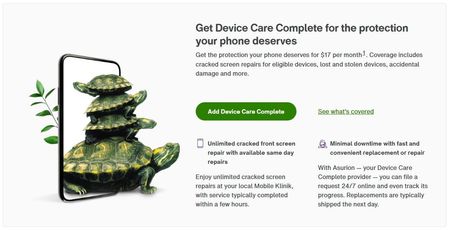
Protect your Android or iPhone from loss, theft, accidental damage, and manufacturing defects. Coverage costs $17 per month and must be added within 60 days of device purchase. What's Covered Loss and Theft Full device replacement if lost or stolen Accidental Damage Cracked or shattered screens Broken camera or power ports Malfunctioning microphone or speaker Liquid damage from water, coffee, or other spills Up to 2 incidents per 12-month period Manufacturing Defects Hardware failures covered under the same incident limit Additional Benefits Free battery replacements Unlimited photo and video storage at full resolution Expert tech support for device setup Repairs through Mobile Klinik How to Add Device Care Complete You have 60 days from your device purchase date to activate coverage. Option 1: During Purchase Add the plan when buying your device online or in-store. Option 2: MyTELUS Account Log in to MyTELUS Navigate to your device settings Select Device Care Complete under available add-ons Confirm enrollment Option 3: Phone Dial *611 from your TELUS device and request Device Care Complete. Option 4: TELUS Store Visit any TELUS location within the 60-day window. Cost $17 per month, billed to your TELUS account.1.1KViews0likes0CommentsHow To Process A Certified Pre-Owned (CPO) Device Repair
Does your certified pre-owned (CPO) device need a repair? Here is some info to help you get that done. In-warranty CPO device - Do not take your device to the brand's store. Visit the nearest TELUS store to discuss with our team, as only TELUS locations can process your iPhone repairs if within the 1 year CPO warranty. *If the device is through Koodo or Public Mobile, please visit the nearest respective store for assistance. Expired CPO warranty or physical/water damage exists - Visit the nearest TELUS or Mobile Klinik store to speak with our team. *If the device is through Koodo or Public Mobile, please visit the nearest respective store for assistance. Version FR5.7KViews1like0Comments