telus
19 TopicsHow to Enable Bridge Mode on TELUS Gateway for Custom Router Setup
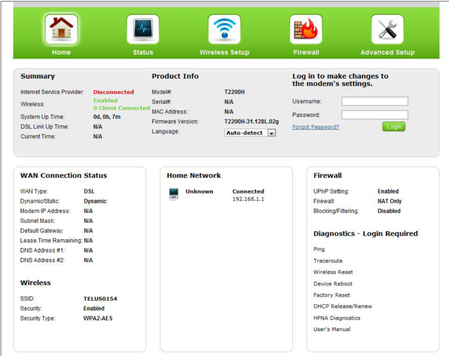
Bridge mode allows you to use your own router with TELUS internet by disabling the built-in router functions of your TELUS gateway. Follow these steps to set up bridge mode on compatible TELUS gateways. Compatible Gateways T1200H (single-line) T2200H (copper-bonded) T3200M Complete Setup Process Access your gateway settings: Open a web browser on a device connected to your TELUS network Enter http://192.168.1.254 in the address bar Log in using your gateway username and password Enable bridge mode: Click the "Wireless Setup" icon Select "Advanced Setup" Choose "Port Bridging" Enable "Port1 Bridge" Click "Apply" to save the changes Expected results after enabling bridge mode: The gateway's Wi-Fi will be disabled Your custom router will now handle network management The internet connection will remain active through the TELUS gateway If This Doesn't Work Double-check that you've selected the correct options and that your gateway model is compatible. If issues persist, try restarting both the TELUS gateway and your custom router. When to Contact TELUS Contact TELUS support if you experience any of the following issues: Login credentials for the gateway settings don't work The bridge mode option isn't visible in the gateway settings Your internet connection fails after enabling bridge mode Your gateway model isn't listed as compatible with bridge mode FR version9.6KViews0likes0CommentsTELUS Rewards
TELUS Rewards: How to Join and Earn Benefits TELUS Rewards offers free benefits to qualifying customers. Learn how to activate your account and start earning rewards. How to Join TELUS Rewards Verify eligibility: Ensure you have at least one qualifying TELUS service Enrollment happens automatically for eligible customers Activate your account: Visit www.telus.com/rewards Log in using your My TELUS credentials Earning Points Complete these activities to earn points: First-time login to TELUS Rewards account Refer friends to TELUS Monthly points for having two or more eligible services Pay your monthly bill on time to maintain point eligibility Using Your Rewards Access Zero-Point Perks: Browse discounts from over 40 partner brands Use exclusive deals without spending points Partners include Disneyland, Ray-Ban, and Booking.com Redeem points for: Contest entries TELUS services Gift cards Check Your Eligibility Visit www.telus.com/rewards to: Confirm your program eligibility View current reward offerings Check your point balance When to Contact TELUS Contact TELUS support if you: Cannot activate your rewards account Have questions about point accumulation Need information about specific rewards Experience issues with point redemption FR version3.2KViews0likes0CommentsTELUS Home Services Support Guide
Here's some quick access to common support topics for TELUS home services. Optik TV Issues watching Optik TV? Add/Change channel subscription online or on your TV Reboot your PVR / STB Optik TV Green welcome screen Adjust your guide to show only subscribed channels How to order PPV Issues with Stream+ Internet Retrieve your Wi-Fi password TELUS Connect Wi-Fi app (control, manage, and pause your Wi-Fi network) How to set up a 2.4 GHz network on a 5 GHz TELUS Hub modem Learn about dual-band (2.4 GHz & 5 GHz) networks Why do I have no internet connection? Step by step troubleshooting Slow internet speeds? Step by step troubleshooting Wi-Fi connection issues? Optimize Your Online Gaming Experience Internet Speed Troubleshooting Troubleshoot your Boost Wi-Fi Internet data usage explained Wi-Fi speed and coverage explained How to restart your modem Slow internet on Smart Hub Weak signal on Smart Hub Home Phone How can I block spam calls to my landline/home phone? Manage voicemail settings online Why do I have no dial tone? Misc. When is PureFibre coming to my area? Is there an outage in my area? What offers do you have for tv/internet/home phone? How do I move my home services? How do I set up and manage pre-authorized payments? Additional Help Search our support database Visit our communityforums Contact us via Facebook Check our Service Status page When to Contact TELUS Your issue isn't resolved by the above guides Complex service changes or issues Technical support needed Billing questions Service moves or transfers2.7KViews0likes0CommentsHow to Set Up TELUS TV+ on Amazon Fire TV
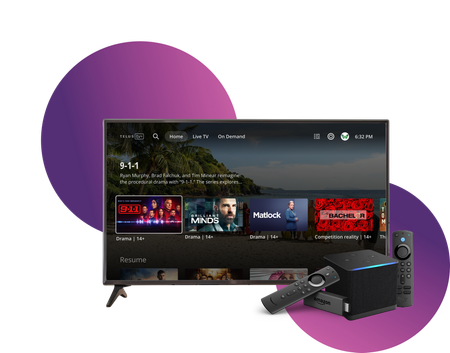
Stream TELUS TV+ content on your Amazon Fire TV devices. Follow these setup instructions to get started. Requirements Active subscription to one of: Optik TV Stream+ Pik TV with live channels Additional requirements: My TELUS or Koodo account Canadian region settings FireOS 6 or higher Installation Steps On your Fire TV device: Open Amazon app store Search for "TELUS TV Plus" Select Install Launch app Sign in using your account credentials Compatible Devices Firestick Fire Cube Fire TV-enabled television sets Available Features Main features: Live TV streaming On-demand content Cloud recordings (with subscription) 4K channel support Service Limitations Some channels require TELUS home internet No On Demand rentals or purchases No Pay Per View events Service available only in Canada Note: For On Demand purchases, use other supported TELUS TV+ devices and watch on Fire TV. When to Contact TELUS Contact TELUS support if you experience: Installation issues Login problems Content accessibility questions Streaming quality concerns Subscription verification needed Version FR2.4KViews0likes0CommentsReturn Your TELUS Equipment in 3 Easy Steps
Have you recently moved, cancelled, or upgraded your services? You may have unused TELUS residential equipment sitting at home. If so, here's what you can do: PACKAGE THE EQUIPMENT - Find any appropriately sized box. - Include the first page of your most recent bill if you have it. If not, just grab a piece of paper and clearly write the following info on it: First and last name of the account holder. TELUS account number and full service address. Phone number associated with the service(s) (if applicable). - Seal the box securely. TAKE THE PACKAGE TO ANY CANADA POST OUTLET - Visit any Canada Post outlet and let the clerk know you're returning residential equipment to TELUS. - Quote the Return ID number PR142924. - Canada Post will provide you with a prepaid waybill, with the TELUS address already printed on it (no charge). (PLEASE NOTE: For any TELUS Mobility and wireless equipment returns, including the TELUS Smart Hub, please call our team directly at 1-866-558-2273 to arrange a return.) KEEP TRACK OF THE WAYBILL NUMBER - Please keep track of the waybill number you received from the Canada Post clerk until the package is successfully returned to our warehouse. - For convenience, take a picture of the waybill so you have it easily accessible on your phone! If you have any further questions, please comment below or reach out to us over at our Twitter/X or Facebook pages and we'll be there to help! FR version2.2KViews0likes0CommentsTELUS Stream+ FAQ: Premium Streaming Bundle Guide
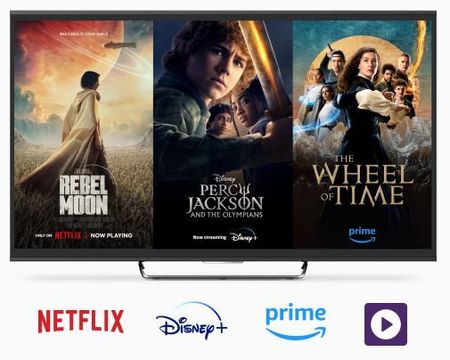
TELUS Stream+ combines Netflix, Disney+, Amazon Prime, and TELUS original content into one convenient streaming package. Here's what you need to know. Plan Options Stream+ Basic includes: Netflix Standard with ads Disney+ Standard with ads Stream+ Premium includes: Netflix Premium Disney+ Premium Key Features Exclusive to existing TELUS customers No long-term commitment required Cancel anytime flexibility Multi-device access (TV, laptop, smartphone, tablet) Powered by the TELUS wireless network Purchase and Activation How to purchase: Visit the Stream+ page Select your preferred plan Pay with credit card (only payment option) Activation process: Purchase the Stream+ bundle Wait for the activation emails Click "Activate Now" in each email Follow setup instructions Managing Existing Accounts Netflix and Amazon Prime: Link your existing account Billing transfers automatically to TELUS Disney+: Link your account Check current subscription to avoid double-billing Cancellation Steps Log into My TELUS Navigate to Subscriptions tab Click "Manage" for your subscription Select "Cancel my subscription" Note: Service continues until the end of your billing cycle When to Contact TELUS Contact TELUS support if you experience: Problems linking existing accounts Missing activation emails Billing issues Questions about features or compatibility Version FR2.2KViews0likes2CommentsTELUS Home Service Vacation Suspension Guide
Learn how to temporarily pause your TELUS home services at a reduced rate while you're away. Suspension Details Time restrictions: Minimum period: 1 month (30 days) Maximum period: 6 months Frequency: Once per 12-month period Cost structure: $15/month per service Free for Home Phone with SmartHome Security Eligible Services Home Phone service Internet service (except with SmartHome Security) Note: TV services cannot be suspended How to Request Suspension Visit the TELUS vacation suspension page Click 'Start your request for a vacation suspension' Log in with My TELUS credentials Complete the suspension form Submit at least 2 business days before departure During Suspension Period Available services: TELUS email access via webmail Unavailable services: Voicemail Calling features Regular internet access Important Considerations Non-TELUS security systems may require active phone/internet No cancellation fees apply Service agreements are not extended SmartHome Security requires active internet When to Contact TELUS Contact TELUS Support if you: Cannot access the suspension request form Have questions about service eligibility Need early service reactivation Experience issues with email access during suspension Note: Provide 48 hours notice for early service reactivation Version FR2.1KViews0likes0CommentsHow to Manage TELUS Home Wi-Fi and Optik TV Parental Controls
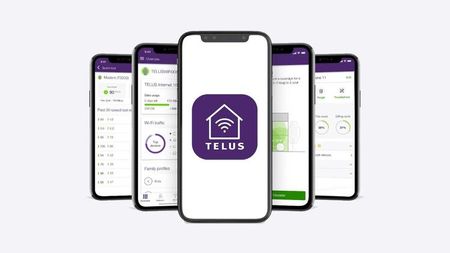
Control access to your home network and TV content using TELUS Connect app and Optik TV parental settings. Wi-Fi Management with TELUS Connect App Get started with the app: Download TELUS Connect from your device's app store Log in using your My TELUS credentials Access control features: View and change Wi-Fi password Monitor network usage Set up guest network access Enable parental controls Create Wi-Fi schedules Pause Wi-Fi instantly for specific devices Optik TV Parental Controls Set up basic controls: Create a parental PIN Configure content restrictions Manage content access: Block specific channels Set rating limits Filter content by type Monitor viewing activity Additional Security Features TELUS Wise provides comprehensive digital safety resources: Online safety guides Family protection tips Digital security best practices Visit TELUS Wise website for detailed information about online safety and security. When to Contact TELUS Contact TELUS support if you experience: Problems logging into TELUS Connect app Non-functioning parental controls Need for PIN reset Network restrictions not working properly Version FR2KViews0likes0CommentsTELUS Home Solutions Payment Options
Choose from multiple convenient methods to pay your TELUS Home Solutions bill. Follow these steps for your preferred payment method. Pre-Authorized Payment Setup Log in to My TELUS account Select your account (if you have multiple) Click "Set up pre-authorized payments" Complete the online form Choose your payment method: Chequing account Credit card Visa Debit MasterCard Debit Website Payment Process Access your account: Log in to My TELUS account Go to Overview or Billings tab Make your payment: Click "Make a payment" or "Pay Bill" Complete payment form Option to save credit card for future use My TELUS App Payment Download the free My TELUS app Navigate to Billing tab Choose payment option: Set up pre-authorized payments Make one-time payment Online Banking Payment Log in to your bank's platform Add TELUS Communications as payee Enter your TELUS account number Complete payment transaction Additional Payment Methods In-person banking (allow 5 business days for processing) Phone payment: Call 310-2255 Prepaid Device: Call #123 Clik2Pay via Interac eTransfer (where available) When to Contact TELUS Contact TELUS support if: Payment isn't reflected after 5 business days You have issues with pre-authorized payment setup You need to update payment information You have questions about billing options FR version1.8KViews0likes0CommentsHow to View and Change Your TELUS Technician Appointment
Manage your upcoming TELUS technician appointments through your My TELUS account. Available for Alberta and BC clients using a desktop browser. Viewing Your Appointment Access your appointment details: Log into My TELUS account Select "My Profile" Click "View and manage your appointments" View appointment information: Scheduled date Arrival time window Service address Contact number Appointment type (install, move, repair) Managing Your Appointment To reschedule: Click "Reschedule" Select new date and time Click "Reserve" To cancel: Click "Cancel" Confirm cancellation To update contact number: Select "Change your contact number" Enter new number Confirm update After Making Changes You'll receive a confirmation email Changes will appear in Appointment Manager Review details page for verification Important Notes Service available only for Alberta and BC customers Must use desktop browser (not available on My TELUS app) Some appointments may require calling TELUS or using Live Chat When to Contact TELUS Contact TELUS support if: You can't reschedule online The cancellation option isn't available You need immediate assistance You're outside AB or BC EN version1.4KViews0likes0Comments