Home Services
16 TopicsNHL on Optik App Guide
Access NHL stats, scores, and schedules through your TELUS Optik TV service with this comprehensive guide. How to Access the App Primary access methods: Tune to channel 910 Press "apps" button on Optik remote Access via Home Screen: Find in apps row Press left arrow during live TV Select "View All" if not visible Available Features Standings Information: Conference rankings Division standings Playoff brackets Game Details: Live scores Period breakdowns Box scores Team rosters Player statistics Schedule Options: Team-specific views Customizable preferences Score history Customization Options Follow specific teams Highlight preferred content Adjust schedule display Track playoff teams Tips for Best Use Check standings regularly Monitor live scores Track favorite teams Review game statistics When to Contact TELUS Contact TELUS support if you experience: App not loading Features unavailable Navigation issues Content not updating Display problems Visit the Support Page for detailed troubleshooting and setup instructions. Version FR286Views0likes0CommentsTELUS Home Services Support Guide
Quick access to common support topics for TELUS home services. Optik TV Issues watching Optik TV? Add/Change channel subscription online or on your TV Reboot your PVR / STB Optik TV Green welcome screen Adjust your guide to show only subscribed channels How to order PPV Issues with Stream+ Internet Retrieve your Wi-Fi password TELUS Connect Wi-Fi app (control, manage, and pause your Wi-Fi network) How to set up a 2.4 GHz network on a 5 GHz TELUS Hub modem Learn about dual-band (2.4 GHz & 5 GHz) networks Why do I have no internet connection? Step by step troubleshooting Slow internet speeds? Step by step troubleshooting Wi-Fi connection issues? Optimize Your Online Gaming Experience Internet Speed Troubleshooting Troubleshoot your Boost Wi-Fi Internet data usage explained Wi-Fi speed and coverage explained How to restart your modem Slow internet on Smart Hub Weak signal on Smart Hub Home Phone How can I block spam calls to my landline/home phone? Manage voicemail settings online Why do I have no dial tone? Misc. When is PureFibre coming to my area? Is there an outage in my area? What offers do you have for tv/internet/home phone? How do I move my home services? How do I set up and manage pre-authorized payments? Additional Help Search support database Visit community forums Contact via Facebook Check service status page When to Contact TELUS Issues not resolved by guides Complex service changes Technical support needed Billing questions Service moves/transfers2.2KViews0likes0CommentsTELUS TV+ Geolocation Feature FAQ
Learn how location services work with TELUS TV+ and ensure uninterrupted streaming of your content. Why Location Access is Required Ensures compliance with content licensing agreements Verifies streaming occurs within Canada Provides optimal streaming experience How to Enable Location Services Apple (iOS) devices: Open "Settings" Go to "Privacy & Security" > "Location Services" Toggle on if needed Find "TELUS TV+" Select "Allow while using the app" Android devices: Open "Settings" Go to "Location" Toggle on if needed Find "TELUS TV+" under "Location services" Select "Allow while using the app" Important Notes Content unavailable without location access Streaming restricted to within Canada Only admin profiles can change location settings Troubleshooting Location Errors Check these settings: Device location services are on TELUS TV+ has location permissions You're within Canada Privacy Information Only approximate location used Data not stored or shared Used solely for Canadian content verification When to Contact TELUS Contact TELUS support if you experience: Persistent location error messages Issues enabling location services Questions about content availability Concerns about data privacy Version Fr390Views0likes0CommentsHow to Return TELUS Residential Equipment
Follow these steps to return unused TELUS equipment after moving, cancelling, or upgrading services. Return Process Contact a TELUS representative to initiate the return Wait for an email from Purolator (check your spam folder) Prepare the equipment: Pack all items securely in a box Include remotes and cables Attach the shipping label: Print the postage-paid waybill from the Purolator email Securely attach it to the box Drop off the package at the nearest Purolator shipping centre If You Don't Have a Printer Follow steps 1-3 of the return process Take the unpacked box to a Purolator location Staff will print and attach the waybill for you What to Include in Your Return Main equipment (e.g., modem, TV box) All associated remotes Power cables Connection cables Important Notes Keep the tracking information for your records Ensure all items are included to avoid additional charges Return promptly to prevent late fees When to Contact TELUS Contact TELUS support if: You haven't received a Purolator email within 5 business days You're unsure which equipment needs to be returned You have questions about potential fees or charges You need alternative return options For detailed instructions and a complete list of returnable items, visit the TELUS returns page. FR version5.8KViews0likes2CommentsHow to Report Missing Episodes in Optik TV On Demand
Follow these steps to notify TELUS about missing On Demand content and track resolution progress. Reporting Process Access the Home Services forum Click "Start a Discussion" Tag the TELUS_Support handle in your post about the missing episode(s) Submit episode details by clicking Publish button in bottom right Required Information Include these details in your report: Show title Season number Episode number Original air date Channel name/number What Happens Next Resolution process: TELUS flags issue to vendors Content team investigates availability Updates made when possible Important Notes Some content unavailable due to licensing Resolution time varies by situation Updates provided through forum Tips for Best Results Provide complete information Check current library first Be specific about missing content Follow up if needed When to Expect Updates Initial response within forum timeline Content updates vary by availability Licensing restrictions may apply Note: Some content issues may be beyond TELUS control due to rights or technical limitations. Version FR134Views1like0CommentsHow to Use Optik TV's Trending Now Feature
Discover popular programs in your area with the Trending Now feature on TELUS Optik TV. Follow this guide to access and utilize this feature effectively. Accessing Trending Now Tune to any channel Either: Wait for channel info to disappear, or Press BACK/EXIT on remote Press right arrow on your Optik remote Using the Feature View top 5 most-watched programs See real-time popularity updates Scroll through options with arrow buttons Press OK to tune into selected program Closing Trending Now Press BACK/EXIT button, or Feature auto-closes after selection Key Benefits Discover new content Stay updated on popular shows Quick access to trending programs Real-time viewing data Tips for Best Use Check regularly for updates Use during prime time for most activity Explore unfamiliar channels/shows Combine with other Optik TV features When to Contact TELUS Contact TELUS support if: Trending Now is not appearing The feature is not updating You have issues selecting programs You have questions about data accuracy For more information or assistance, visit the TELUS website or contact support through Facebook. Version FR91Views0likes0CommentsTree Trimming Guidelines for TELUS Cable Areas
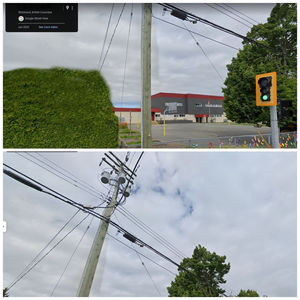
Information about cables near power lines and safety guidelines for tree trimming. Property Owner Responsibilities Any trees located on private property are the sole responsibility of the homeowner, and we recommend reaching out to a professional arborist if necessary to handle any tree branch trimming near TELUS cables. For safety reasons, we advise to never trim near power lines. Note: Many TELUS cable strands are attached to portions of power-provided poles. If this is the case, please contact your power company to arrange for a tree-trimmer to be dispatched as electricity is involved. How to Identify Pole Ownership Check Google Maps: Switch to street view Drag view upward Look for power equipment You can also contact your city who may have their own trained arborists to deal with power poles. Otherwise, they will advise to contact the power company. When to Contact Each Authority Power Company: Poles with electrical equipment Shared utility poles Power line concerns City Services: Municipal tree management Permit requirements Public safety issues TELUS: Cable-only poles Service disruptions Infrastructure damage Note: Always prioritize safety and professional assessment when dealing with utilities. FR version329Views0likes0CommentsHow to Customize Your Optik TV Guide and Favorites
Personalize your Optik TV experience by organizing channels and creating custom lists. Follow these steps to tailor your viewing options. Show Only Subscribed Channels Press OPTIONS on your Optik remote Select FAVOURITES LIST Choose SUBSCRIBED CHANNELS Press OK to confirm Create a Favorite Channels List Press OPTIONS on your Optik remote Select EDIT FAVOURITES Choose SET UP Check boxes next to preferred channels Press SAVE when finished Add a Channel to Favorites While Watching Press OPTIONS on your Optik remote Select ADD TO FAVOURITES Use Live TV Filters Press OPTIONS on your Optik remote Select LIVE TV FILTERS Choose a category: Educational Kids Movies Sports News Additional Features Create multiple favorite lists for different users Use the TELUS TV+ app for mobile viewing Tips for Optimal Use Regularly update your favorites as preferences change Explore different filter categories for new content Familiarize yourself with the TELUS TV+ app features When to Contact TELUS Contact TELUS support if you experience: Guide customization options not appearing Issues saving favorite channels Problems with Live TV Filters Questions about TELUS TV+ app compatibility FR version981Views0likes0CommentsHow to Extend Optik TV PVR Recording Time (Non-Android Boxes Only)
Learn how to extend your PVR recording time up to 3 hours to capture entire live events without missing overtime or extended programming. *Our Android boxes auto-extend sports events so there's no need to extend yourself. Setting Up Extended Recording Open TV Guide: Press GUIDE button on remote Find desired program Highlight with green cursor Start recording setup: Press INFO button Choose 'Record episode' Press OK Adjust end time: Move cursor to 'At scheduled end time - Change' Press OK Select desired extension length Press OK Confirm recording: Move cursor back to 'Record' Press OK New Optik Experience Features Automatic extensions for live sports: 60 minutes for most events 90 minutes for tennis matches Important Notes Maximum extension: 3 hours Ideal for live events and sports games Ensures capture of overtime or extended play Tips for Optimal Use Consider potential overtime for sports events Add extra time for pre/post-game coverage Check program guide for accurate start times When to Contact TELUS Contact TELUS support if you experience: Unable to access extension options Recording not saving extended time Questions about storage capacity Issues with automatic extensions FR version568Views0likes0CommentsHow to View and Change Your TELUS Technician Appointment
Manage your upcoming TELUS technician appointments through your My TELUS account. Available for Alberta and BC clients using a desktop browser. Viewing Your Appointment Access your appointment details: Log into My TELUS account Select "My Profile" Click "View and manage your appointments" View appointment information: Scheduled date Arrival time window Service address Contact number Appointment type (install, move, repair) Managing Your Appointment To reschedule: Click "Reschedule" Select new date and time Click "Reserve" To cancel: Click "Cancel" Confirm cancellation To update contact number: Select "Change your contact number" Enter new number Confirm update After Making Changes You'll receive a confirmation email Changes will appear in Appointment Manager Review details page for verification Important Notes Service available only for Alberta and BC customers Must use desktop browser (not available on My TELUS app) Some appointments may require calling TELUS or using Live Chat When to Contact TELUS Contact TELUS support if: You can't reschedule online The cancellation option isn't available You need immediate assistance You're outside AB or BC EN version1.1KViews0likes0Comments