User Profile

Tony1000
Organizer
Joined 10 years ago

User Widgets
Contributions
Bug in Smart Arming - doesn't disarm
Smart Arming doesn't seem to be working properly - system doesn't disarm as scheduled. In Telus SmartHome app, from home menu, select "Security System", then select "Smart Arming". Turn on "Goodnight" setting, "Arm Stay my system between xx PM and xx AM". Arm Stay came on as scheduled, but did not disarm next morning. Had to manually disarm system. Anyone else encounter this one?Solved2.7KViews0likes2CommentsRe: Telus email on MacBook broken - connections to host imap.google.com failed
Hey all, it worked for a couple days then my Telus email broke again in Apple Mail. So here's the story ... Slightly different problem than before, now it was Send Mail that wasn't working. Receiving mail still worked. The error message was, "Cannot send message using the server ****@telus.net. The sender address was rejected by the server smtp.gmail.com. The server response was: Authentication Required." In Mail -> Preferences -> Accounts, tried re-entering the password multiple times, but no luck. Tried generating another App Password in Google, but still no luck. Finally, in the same message prompt as above, went into "Edit SMTP Server List", and found multiple entries for my ****@telus.net email address. Figuring this might be the source of confusion, I deleted them all, went back to Accounts, and removed the Telus email account (clicking the "-"). Am using IMAP so this only removes the account in Apple Mail, doesn't delete the actual Google email account. Then I re-added it using these instructions: https://www.telus.com/en/support/article/set-up-email-on-devices. Briefly, it's Mail -> Add Account, then follow the steps. It does't require an App Password; you authenticate in a browser logging into Google and allowing MacOS access. And presto! My Telus email account was back in action in Apple Mail. So not sure exactly what went down here, but fun waste of a nice afternoon with Telus email powered by Google 😬.7.2KViews1like2CommentsTelus email on MacBook broken - connections to host imap.google.com failed
My Telus email account in Apple Mail on my MacBook just broke today. Was working fine up to yesterday, then just opened Apple Mail today and it had a "!" message beside the TELUS email account ("Powered by Google 🙂 The error message says "Connections to host imap.google.com on the default ports failed." Didn't change any settings or port #'s. Seems something specific to my TELUS email account in Apple Mail on my MacBook. Everything else works fine - Telus email still works fine using a Gmail in a browser and Apple's mail app on an iPhone. Any suggestions?Solved7.5KViews0likes5CommentsRe: Outlook 365 - problems with migration to gmail
Migrated this morning as scheduled. Experience was, well…, from easy to difficult! I use IMAP to access email from multiple devices including Apple Mail on MacBook (Mojave), iPhone (iOS 13) and Outlook 365 on Windows 10, and wanted to continue using them all for the “new” Telus email. So the migration was completely painless on the Mac and iPhone. Followed the steps to activate my Telus email on Google (easy), then setup the Mac and iPhone (also easy) (https://www.telus.com/en/bc/support/article/set-up-email-iphone-ipad-google). Up and running with all folders intact within a half hour or so. Then came Outlook 365, what a pain! Took several hours including a lengthy but helpful Telus chat session. Wasn’t clear what directions to follow but turns out Outlook 2016 directions are (mostly) applicable: https://www.telus.com/en/bc/support/article/set-up-telus-email-on-your-computer-using-outlook-2016-google. Be sure to follow all the steps including the Gmail web interface and the Outlook 2016 set-up. Outlook wouldn’t let me add a new account with the same email address (telus.net) so I had to remove my old “telus.net” email account from Outlook, then add it back as a new account following the steps for Outlook 2016 as above. You have to manually put in the Incoming and Outgoing server settings (lame, because it was seamless on Apple products). Couple notes, I got stuck in a loop at Step 11 trying to connect to the server – you have to hit Cancel to get to the next step (12) “Something went wrong..” screen, which is what you want, then you get the option to “Change account settings”. Also I did not get the checkbox for “My outgoing (SMTP) server requires authentication”, turns out that is on by default in Outlook 365. Eventually Outlook connected and all my IMAP folders appeared. Note, this takes some time if you have a bunch of them. Also, the Received time in Outlook is now messed up for many downloaded messages. (It was fine on Mac and iOS mail). So good luck to anyone using Outlook 365. Save yourself a full morning to get through it!28KViews4likes7CommentsRe: Cannot verify server identity - certificate expired
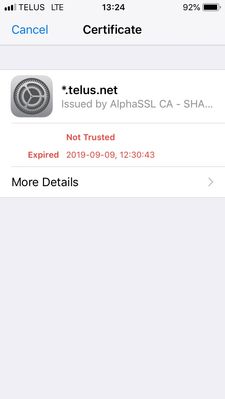
TELUS has to renew the certificate. If you click on the details (in the screen shot above), it shows you the certificate was issued in 2014 fora 5 year period. Their issuing authority should have reminded them to renew well in advance. Obviously, no one at TELUS is paying attention.30KViews0likes2Comments