mobility
157 Topics
Stream+ Activation Error
Trying to activate stream+ when i press on the link for Amazon Prime, Disney+, and Netflix it just states "Sorry, your subscriptions list is not available at this time. Please try again or check back later." Its been almost 24 hours. Ever since putting in payment information for Stream+ have received the emails for activation but have not been able to link or create account for any of the three streaming services listed above; due to the error message. Not sure what's going on or how to fix this.43KViews0likes141CommentsHow To Add a Fast Pass
If you’re running low on fast data, plan in advance and consider adding a one-time top-up of extra data to get you through your bill cycle. Fast Passes and data top-ups come in different sizes and auto-expire at the end of your current billing cycle so all you have to do is add it and forget it. TELUS Peace of Mind Endless Data Plans If you subscribe to an endless data plan, like our Peace of Mind and Peace of Mind Connect, and need more full-speed data until your next billing cycle, Fast Passes are available as an option. How to add Fast Passes From a computer: Login to your My TELUS account Click on the Usage tab Click on Add a data top-up next to the desired subscriber (if applicable) Select your desired pass and click on Complete your purchase Using your mobile device: Open the My TELUS app Tap on the Usage tab Tap on Add a data top-up Select your desired pass and tap on Get add-on Note: Fast Passes are available through self-serve services, including My TELUS, the My TELUS app, the TELUS Virtual Assistant, and by replying to SMS data notifications. Fast Pass purchases are not available through a TELUS representative. Tips From The Experts Our Neighbourhood experts have curated helpful tips on managing data usage for both Android and iOS devices, so be sure to check them out. Fast Passes and data top-ups will be available until the end of the current billing cycle and won’t carry over to the next cycle. If you’ve had a data-heavy month, keep an eye on your usage and look out for additional notifications to prevent pay-per-use charges. Fast Passes and data top-ups can only be added up to 3 times (for each given amount) within each billing cycle. In addition to managing data notifications, TELUS Data Manager offers a variety of tools that will help you manage your usage For more information check out Adding Fast Passes on TELUS.com Version FR15KViews0likes0CommentsUpgrading or Changing Your Smartphone
If you've recently upgraded or changed your smartphone, there are a number of things to be sure to do. We've got some resources below to help you with your new device. Ordering Online Most flagship devices are available for preorder the week before the official launch date. This is a great way to ensure you're getting the hottest new device from the convenience of your home. We all know though that the wait for that phone to arrive can be excruciating. To help, we recommend using our handy Online Order Tracking Tool to keep tabs on your order. We've even got info on how to use it over here! Swapping Your SIM If your previous phone used the same sized SIM as your new one, it's usually as easy as removing it and inserting the SIM into the new one. If you want to swap the SIM online, we've got a handy guide for that as well. If however, your new phone requires a different sized SIM or if you're a new TELUS client, you'll need to purchase one. We always suggest ordering one at the same time as your phone but if you forgot, you can easily order one online or pick one up at the nearest TELUS store. Transferring Content Check out our extensive guide for transferring data from your old phone to your new one. Protecting Your Device Now that your new phone is ready, let's talk about protecting it. An important first step in doing that is to consider a new phone case to protect your new smartphone. Not just an accessory, they can provide peace of mind with shock-absorbing features, waterproofing, and extra grip. Always a smart move. Purchasing an extended warranty is also a good choice, as manufacturer warranties only cover hardware failure. Device Care Complete and AppleCare+ extend the manufacturer's warranty up to 2 years and add protection against accidental damage. FR version14KViews0likes0CommentsReporting Spam
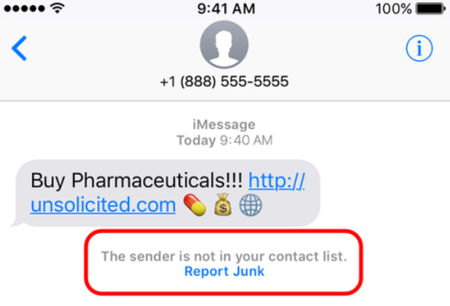
Here at TELUS we are constantly working to prevent spam texts and other fraudulent communications from reaching our customers. There are actions you can take as well to not only spot a spam message but to report it to our team for investigation. The main things to remember if you receive a spam text message are: Forward the spam message to the shortcode 7726 (SPAM). If you're receiving more than one, we recommend putting 7726 into your contact list so it's easily remembered. Don't respond directly to the number that sent you the spam text. This will alert the spammer that your number is genuine and active. If you're not able to view the number or if it's email spam, forward us the entire message (along with the subject header if it's an email). How To Forward a Spam Text From Your Phone To 7726 iPhone 1. Touch and hold the message 2. Select More 3. Select the message you want to forward, then select the arrow in the bottom right corner 4. Enter 7726 5. Select Send Android / Windows 1. Press the message (be careful not to activate / tap on a link) 2. Choose Forward (from the menu) 3. Forward to 7726 *Reporting spam to 7726 is free. Messages forwarded to 7726 don't count toward your data or Messaging bucket iMessage Spam Reporting The key difference between an iMessage and an SMS message is the colour of the text. An iMessage text appears in a blue bubble, whereas an SMS message appears in a green bubble. If the spam text you receive appears in green, you may need to report it using the steps above. If the spam is an iMessage and comes from someone not saved in your contacts, you'll see a message stating that "the sender is not in your contact list" and you'll have the option to Report junk. Alternatively, you can send an email to [email protected] with this information: A screenshot of the message The email address or phone number that sent you the iMessage The date and time you received the spam iMessage Android Spam Reporting To report a spam message on your Android device: On your Android phone or tablet, open the Messages app Touch and hold the conversation you want to report Tap Block --> Report Spam --> OK You can also open a conversation and report it as spam. From the conversation, tap More Options --> Details --> Block & Report Spam --> OK Please note: This is for SMS/MMS spam only. If you receive email spam, it can be reported directly by forwarding it to [email protected] If you have further questions about spam messaging or any other messages you receive, don't hesitate to ask the community at our Neighbourhood Forums or reach out to us over at our Facebook page as well. FR version8.8KViews4likes2CommentsGet To Know The My TELUS App
Get To Know The My TELUS App Did you know we have a highly rated app that allows you to check your bills, usage, and much more at the tip of your fingers? We know that your time matters, and the My TELUS app has got you covered! Let's take a look at everything you can do with the app. The benefits of using the My TELUS app Making changes to your plan & add-ons Viewing your bill & usage details Setting up data notifications & limits Checking/keeping track of your data usage Reduced wait times on the phone How to create & access your account 1. Download the My TELUS app on your iPhone or Android device or text “app” to 54555 to download. Alternatively, you can also access the web version here. 2. Once downloaded, you’ll have the option to sign up for My TELUS or log in (if you’ve already created an account in the past). 3. Log in and you’re ready to go! You can now make changes to your services & view your usage details. If you have any questions, reach out to us over on our Facebook page or Xaccount, or send a private message to our TELUS_Support handle and we'll be around to help! FR version6.9KViews1like0CommentsHow To Track The Status of a Device Return
Did you get a phone through the TELUS Bring-It-Back program, and now you've returned the device to us? Learn how to track the status of a device return by following these easy steps: 1. Log in to the My TELUS app 2. Select the Device tab near the top of your screen. 3. Tap on Order Processing under the Return tracker heading. It's that easy! The status of the order will update throughout the return process, so keep checking back to stay on top of things. Version FR6.7KViews0likes0Comments