Mobility
15 TopicsHow to Swap Your TELUS SIM Card
SIM card swapping enables your device to connect to the TELUS network. Follow these steps to perform the swap yourself without visiting a store. Prerequisites Before starting, ensure you have: Your new TELUS SIM card Your current device (powered on and connected to the TELUS network) Access to your My TELUS online account SIM Card Swap Procedure Keep your device powered on with the old SIM card inserted. Log into your My TELUS account online. Navigate to "Plans & Devices" at the top, then click "Device," followed by "Swap your SIM card." Enter the number from your new SIM card. Complete the two-factor authentication: Choose to receive the verification code via SMS or email Enter the 6-digit verification code you receive Once the system confirms the swap is complete, power off your device. Remove the old SIM card and insert the new one. Power your device back on. Verify the connection by making a test call. Troubleshooting If you encounter issues during the swap process: Ensure you're entering the correct SIM card number Double-check that you're using a valid verification method (SMS or email) If the swap doesn't complete, wait a few minutes and try again When to Contact TELUS Reach out to TELUS customer support if: You can't complete the SIM swap online Your device fails to connect to the network after the swap You need additional assistance with SIM card configuration TELUS experts are available to help resolve any technical issues and ensure your device functions correctly on the network. You can contact TELUS through their official support channels or reach out via their Facebook page for assistance. EN version1.1KViews0likes2CommentsReporting Spam
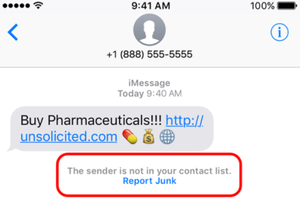
Here at TELUS we are constantly working to prevent spam texts and other fraudulent communications from reaching our customers. There are actions you can take as well to not only spot a spam message but to report it to our team for investigation. The main things to remember if you receive a spam text message are: Forward the spam message to the shortcode 7726 (SPAM). If you're receiving more than one, we recommend putting 7726 into your contact list so it's easily remembered. Don't respond directly to the number that sent you the spam text. This will alert the spammer that your number is genuine and active. If you're not able to view the number or if it's email spam, forward us the entire message (along with the subject header if it's an email). How To Forward a Spam Text From Your Phone To 7726 iPhone 1. Touch and hold the message 2. Select More 3. Select the message you want to forward, then select the arrow in the bottom right corner 4. Enter 7726 5. Select Send Android / Windows 1. Press the message (be careful not to activate / tap on a link) 2. Choose Forward (from the menu) 3. Forward to 7726 *Reporting spam to 7726 is free. Messages forwarded to 7726 don't count toward your data or Messaging bucket iMessage Spam Reporting The key difference between an iMessage and an SMS message is the colour of the text. An iMessage text appears in a blue bubble, whereas an SMS message appears in a green bubble. If the spam text you receive appears in green, you may need to report it using the steps above. If the spam is an iMessage and comes from someone not saved in your contacts, you'll see a message stating that "the sender is not in your contact list" and you'll have the option to Report junk. Alternatively, you can send an email to [email protected] with this information: A screenshot of the message The email address or phone number that sent you the iMessage The date and time you received the spam iMessage Android Spam Reporting To report a spam message on your Android device: On your Android phone or tablet, open the Messages app Touch and hold the conversation you want to report Tap Block --> Report Spam --> OK You can also open a conversation and report it as spam. From the conversation, tap More Options --> Details --> Block & Report Spam --> OK Please note: This is for SMS/MMS spam only. If you receive email spam, it can be reported directly by forwarding it to [email protected] If you have further questions about spam messaging or any other messages you receive, don't hesitate to ask the community at our Neighbourhood Forums or reach out to us over at our Facebook page as well. FR version8.5KViews4likes2CommentsTraveling With Easy Roam
Easy Roam lets you use your existing data and minutes in other countries. Add the feature before you travel to avoid higher roaming charges. How to Add Easy Roam Through the My TELUS app: Open the app and select "Usage" Tap "Easy Roam" Turn on the feature By text message: Text TRAVEL to 7626 Reply EASY when you receive instructions Billing and Usage Daily charges: Easy Roam bills from activation until 11:59 PM that day. Each 24-hour period counts as one day of usage. Automatic renewal: The feature renews daily while you're traveling unless you disable it. Avoid Charges When Not Using Easy Roam Turn off both settings to prevent Easy Roam from activating the next day: Disable Data Roaming in your phone settings Enable Airplane Mode Making Calls to Canada Dialing format varies by country. Visit howtocallabroad.com for specific instructions based on your location. Text messages to Canada: Use the same international dialing format required for calls. When You Return Home Easy Roam stops billing automatically when you're back in Canada. No action needed to disable the feature. When to Contact TELUS Contact TELUS before traveling if you're unsure about Easy Roam rates for your destination, need help activating the feature, or experience unexpected charges. Check your bill after returning to verify all Easy Roam charges are correct. Version Fr743Views0likes0CommentsTELUS Mobility Vacation Suspension
Vacation suspension reduces your monthly bill while you're away. Your service pauses and resumes when you return. Eligibility and Duration All monthly plan customers can suspend service for 1-6 months per year. Active service agreements continue unchanged during suspension. Suspension Costs Mobile phones and tablets: $30/month plus device payments (if applicable) Wireless internet devices (Smart Hub, portable hubs, internet keys): $10/month Device payment plans continue at regular rates during suspension. How to Suspend Your Service Visit the TELUS Mobility Vacation Suspension page Select "Log in" under "Please log in to start this process" Enter your telus.com/mytelus username and password Choose the phone number to suspend Complete the form fields and select "Submit" You'll receive a confirmation email when the process completes. The system will notify you if no eligible mobility services exist on your account. Have home services? Visit the Home Services Suspension page to learn more on how to pause internet or home phone service. Early Return Contact TELUS to reactivate your service. Reactivation takes a few minutes. Alternative: Travel with Your Service Keep your phone active while traveling: Check roaming rates at telus.com/travel for your destination Text ROAM to 7626 for Easy Roam details and pricing When to Contact TELUS Contact TELUS if you need to reactivate service early, have questions about device payments during suspension, or need help with the suspension process. Call customer service for immediate assistance with activation or technical issues. Version Fr774Views0likes0CommentsHow to Pay Your TELUS Mobility Bill
Pay your TELUS bill using your credit card, debit card, or online banking. Choose the payment method that works best for you. Set Up Automatic Payments Automatic payments withdraw your bill amount each month from your chequing account, credit card, Visa Debit, or MasterCard Debit. On My TELUS Website: Log in to your My TELUS account Select the account you want to set up (if you have multiple accounts) Select "Set up pre-authorized payments" Complete the online form and submit On My TELUS App: Download the free My TELUS app and go to the Billing tab to set up automatic payments. Make a One-Time Payment On My TELUS Website: Log in to your My TELUS account Go to the Overview or Billing tab Select the account you want to pay (if you have multiple accounts) Click "Make a payment" or "Pay Bill" Complete the payment form You can save your credit card information for faster future payments. Through Online Banking: Log in to your bank's website, app, or call telebanking Add TELUS Mobility as a payee Enter your TELUS account number (found on your bill or Client Service Agreement) Submit your payment By Phone: Call 1-866-558-2273 and follow the automated prompts to pay with a credit card. You can also check your balance, update payment details, or notify us of a payment. For Prepaid Devices: Call #123 from your TELUS prepaid device Enter your PIN Press 5 to register a credit card Follow the prompts to enter your card details Wait for confirmation At Your Bank: Bring your bill or remittance slip to your local bank or financial institution. Payments take up to 5 business days to process. Using Clik2Pay (Interac e-Transfer) If you see the Clik2Pay icon on your bill or collection notice, you can pay via e-Transfer: Click the Clik2Pay icon in your bill or notice Choose your bank from the Interac gateway page Log in to your online or mobile banking Verify and approve the payment Clik2Pay uses bank-grade security. Learn more at clik2pay.com. When to Contact TELUS If your payment doesn't appear on your account after the expected processing time, you're having trouble setting up automatic payments, or you need help choosing a payment method, contact TELUS Mobility support through your My TELUS account or send our TELUS_Support account a private message here on the Neighbourhood. Version FR1.7KViews0likes0CommentsTrack Your TELUS Device Order
Enter your order number in our Order Status tracker to see real-time updates from purchase to delivery. Order Status Meanings Order Processed Your order is being prepared for shipment. Processing takes 3-5 business days for most devices, longer for high-demand or limited stock items. You'll receive a tracking number by email once shipped. If we need additional information, we'll contact you by email. Order Approved Your order is ready to ship. Watch for an email with your tracking number at the address you provided during checkout. Order Shipped Your package is on its way. Check your email for the courier name and tracking number. Delivery takes 2-5 business days from ship date. More Information Needed We cannot complete your order without additional details. Check your email for instructions, then contact [email protected] with your order number. Order Cancelled Your order has been cancelled. Refunds are processed within 3-5 business days to your original payment method. No Order Number Found The order number entered doesn't match our records. Verify the number in your confirmation email and try again. When to Contact TELUS If your order status hasn't updated after the expected timeframe, you haven't received tracking information, or you have questions about your order, reach out through the TELUS Facebook page or send a private message to our TELUS_Support account here on the Neighbourhood. For order-specific issues requiring immediate attention, email [email protected] directly with your order number. Version FR1.1KViews0likes0CommentsChange Number of Rings Before Voicemail Picks Up
Your phone rings a set number of times before calls go to voicemail. You can customize this timing to give yourself more or less time to answer. Setting Your Ring Duration Two activation methods are available. Try Method 1 first, and if it doesn't work try Method 2. Method 1 Open your phone's dial pad Enter: *61*[your voicemail access number]**[ number of seconds]# Press Send or Call Wait for confirmation message Example: *61*16045953000**20# This sets a 20-second delay (4 rings). Note: Timer value must be in increments of 5 seconds to a maximum of 30. To turn off this feature, dial #61# and press Send. Method 2 Open your phone's dial pad Enter: *004*[your voicemail access number]**[number of seconds]# Press Send or Call Wait for confirmation message Example: *004*16045953000**15# sets a 15-second delay (3 rings). Note: Timer value must be in increments of 5 seconds to a maximum of 30. To turn off this feature, dial #004# and press Send. Device Limitations This feature does not work with Smart Hubs or Wireless Home Phone devices. Samsung phones do not support ring duration customization. When to Contact TELUS If both methods fail to activate, or you're unsure of your voicemail access number, contact TELUS support. They can verify your device compatibility and provide your specific voicemail access number. Version FR2.4KViews0likes0CommentsProtect Your Privacy on Your Devices
Protect Your Privacy on Your Devices Protecting your privacy is of the utmost importance. Our phones are an extension of our lives, so we want to help you make informed decisions on limiting the amount of personal info you share through your device. Here are some tips to help. AutoFill To save time, AutoFill saves your most commonly used info (banking/credit card info, passwords, contact information, etc.) and gives you the option to automatically fill in these blank forms. While this is definitely convenient, it can also be a liability should access to your device become compromised. To disable AutoFill on iOS: Tap the Settings icon Scroll to and tap on Safari Tap on AutoFill Disable the info in the categories you don't want to be saved in your device. To disable AutoFill on Android: Tap on Settings Tap on Privacy Tap on Auto-fill from Google Toggle off Use Auto-fill with Google Browsing Most native browsers offer a Private/Incognito mode that prevents information such as your cookies, website data, browsing history, or form data from being saved on your device. This means your activity won’t be available to any other website or any person who might come into possession of your device. Also consider using privacy-centric browsers such as: DuckDuckGo Android iOS Brave - Private Web Browser Android iOS Onion Browser iOS and more Disable Ad Tracking Protect yourself from the prying eyes of algorithms that track everything you do online including every website you visit, forms you fill, items looked at and/or purchased, and more. Their goal is to build an advertiser profile to target ads that may be of interest to you. To disable ad tracking on iOS: Tap on Settings Tap on Privacy & security Scroll to and tap on Apple Advertising Toggle off Personalized Ads To disable ad tracking on Android: Tap on Settings Tap on Google and then tap on Ads Tap on Delete Advertising ID *Note: certain Android devices may nest the setting as follows: Settings > Privacy > Ads > Delete Advertising ID Location Services Leaving your device's location services enabled can have the following effects: The Good Help you find your phone should you lose it List the closest restaurants, banks, and other locations Quickly give you driving directions when you’re lost The Bad Embed GPS coordinates into your pictures Let apps and advertisers track your location May use more battery To disable location services on iOS: Tap on Settings Tap on Privacy Tap on Location Services Toggle off Location Services to disable it for all apps, or scroll down and limit access on a per-app basis To disable location services on Android: Tap on Settings Tap on Location Toggle off Location Services to disable it for all apps, or scroll down and limit access on a per-app basis *Note: an alternative to tapping on Settings is to swipe down from the top of the home screen to expose the notification shade and disable Location from quick settings. Virtual Private Networks (VPN) Do you use free public Wi-Fi on a semi or regular basis? These networks may lack proper security and can leave you vulnerable to theft of your data via interception by bad actors. Consider using a VPN service. VPN's act like parallel networks that tunnel through public Wi-Fi networks (or any internet connection in general). They mask your data enabling you to browse safely. To help you make an informed purchasing decision, we found some review blogs from top tech sites that rate various VPN services: CNET Tom’s Guide Techradar If you have any questions about privacy on your device, feel free to ask the community or reach out to us over at our Facebook page and we'll be there to help! FR version3.8KViews0likes0CommentsProtecting Your Smartphone
Protecting Your Smartphone It's an exciting time when a new phone arrives. We want you to make sure you're doing everything possible to keep that new device running smoothly and safely. Let's look at some handy tips for keeping your new smartphone safe. Protection An important first step to consider is buying a phone case to protect your brand new smartphone. Not just an accessory, they can provide peace of mind with shock-absorbing features, waterproofing, and extra grip. Always a smart move. Purchasing an extended warranty is also a good choice, as manufacturer warranties only cover hardware failure. Device Care Complete and AppleCare+ extend the manufacturer's warranty up to 2 years and add protection against accidental damage. Water Damage The key to preventing water damage to your smartphone is to plan and always be prepared. Not keeping your phone in your back pocket will prevent it from falling in the toilet or being sat on. Storing your phone in a sealed waterproof bag or case before you head to the pool or beach will also help. If your phone does get submerged, be sure to remove the battery if you can, and place it in a bowl or bag of rice overnight to absorb as much of the moisture as possible. If that doesn't do the trick, review your warranty guidelines or take it to the nearest TELUS store for repair options. Cracked Screen Some manufacturer warranties cover cracked screens in the first 30 days. If you're past that timeframe however, and you don't have an extended warranty, you can always visit the nearest TELUS store or try Mobile Klinik to look into your options for repair/replacement. Lost or Stolen Device Some common ways to lose your smartphone include leaving it on the rooftop of your car before getting in, or leaving it in a restaurant or store, etc. Always be aware of your surroundings and keep your phone stored safely when not in use. Ensure you have a lock code to protect it if anything should occur. Always remember, you can reach out to our Support team anytime at our Facebook page or by sending a private message to our TELUS_Support handle here if you need assistance. FR version2.1KViews0likes0Comments