samsung
13 TopicsSoftware Update Schedule
All dates are approximate and subject to change. Please note posted dates reflect when the update is targeted for release but can take a few weeks to roll out to all devices. Device Target Date Update Samsung GS26 FE Sep-18 Security Updates Samsung A57 Sep-18 Security Updates Samsung A56 Sep-18 Security Updates Samsung A36 Sep-18 Security Updates Samsung Watch9 40/44mm Sep-18 Security Updates Samsung Watch Ultra2 Sep-18 Security Updates Samsung Z Flip8 Sep-21 Optimizations + Security Updates Samsung Z Fold8 Sep-21 Optimizations + Security Updates Samsung Z Fold8 Ultra Sep-21 Optimizations + Security Updates Apple Watch SE3 Sep-23 New watchOS release Apple Watch Series 12 Sep-23 New watchOS release Apple Watch Ultra 4 Sep-23 New watchOS release Samsung XCover7 Pro Sep-25 Security Updates Samsung A35 Sep-25 Security Updates Samsung A53 Sep-25 Security Updates Samsung A17 Sep-25 Security Updates Moto Edge (2026) Sep-25 Security Updates Samsung GS26 Sep-29 Optimizations + Security Updates Samsung GS26+ Sep-29 Optimizations + Security Updates Samsung GS26 Ultra Sep-29 Optimizations + Security Updates Samsung GS23 FE Oct-2 Security Updates Samsung GS26 FE Oct-2 Security Updates Samsung A54 Oct-2 Security Updates Samsung XCover6 Pro Oct-2 Security Updates Samsung A16 Oct-2 Security Updates Samsung GS25 Oct-5 Optimizations + Security Updates Samsung GS25+ Oct-5 Optimizations + Security Updates Samsung GS25 Ultra Oct-5 Optimizations + Security Updates Samsung GS25 Edge Oct-5 Optimizations + Security Updates Samsung GS25 FE Oct-5 Optimizations + Security Updates Samsung Z Flip7 Oct-5 Optimizations + Security Updates Samsung Z Fold7 Oct-5 Optimizations + Security Updates Moto G (2026) Oct-5 Optimizations Moto G 5G (2024) Oct-5 Optimizations Moto RAZR+ (2023) Oct-6 Security Updates Google Pixel 6 Oct-6 Optimizations + Security Updates Google Pixel 6 Pro Oct-6 Optimizations + Security Updates Google Pixel 6a Oct-6 Optimizations + Security Updates Google Pixel 7 Oct-6 Optimizations + Security Updates Google Pixel 7 Pro Oct-6 Optimizations + Security Updates Google Pixel 7a Oct-6 Optimizations + Security Updates Google Pixel 8 Oct-6 Optimizations + Security Updates Google Pixel 8 Pro Oct-6 Optimizations + Security Updates Google Pixel 8a Oct-6 Optimizations + Security Updates Google Pixel 9 Oct-6 Optimizations + Security Updates Google Pixel 9 Pro Oct-6 Optimizations + Security Updates Google Pixel 9 Pro XL Oct-6 Optimizations + Security Updates Google Pixel 9 Pro Fold Oct-6 Optimizations + Security Updates Google Pixel 9a Oct-6 Optimizations + Security Updates Google Pixel 10 Oct-6 Optimizations + Security Updates Google Pixel 10 Pro Oct-6 Optimizations + Security Updates Google Pixel 10 Pro XL Oct-6 Optimizations + Security Updates Google Pixel 10 Pro Fold Oct-6 Optimizations + Security Updates Google Pixel 10a Oct-6 Optimizations + Security Updates Google Pixel 11 Oct-6 Optimizations + Security Updates Google Pixel 11 Pro Oct-6 Optimizations + Security Updates Google Pixel 11 Pro XL Oct-6 Optimizations + Security Updates Google Pixel 11 Pro Fold Oct-6 Optimizations + Security Updates Samsung GS26 Oct-9 Security Updates Samsung GS26+ Oct-9 Security Updates Samsung GS26 Ultra Oct-9 Security Updates Samsung Tab A11+ Oct-9 Security Updates Moto Edge (2024) Oct-12 Security Updates Moto Edge (2025) Oct-12 Security Updates Moto RAZR+ (2024) Oct-12 Security Updates Moto Edge (2024) Oct-12 Security Updates Moto Edge (2025) Oct-12 Security Updates Moto G (2025) Oct-14 Security Updates SAMSUNG Tab A9+ Oct-14 Optimizations + Security Updates SAMSUNG GS24 Oct-15 Android 17 Update SAMSUNG GS24+ Oct-15 Android 17 Update SAMSUNG GS24 Ultra Oct-15 Android 17 Update SAMSUNG GS24 FE Oct-15 Android 17 Update SAMSUNG Tab S9 FE Oct-16 Security Updates SAMSUNG A53 Oct-27 Optimizations + Security Updates Last updated: Oct 16, 2026 Get notified first about our schedule updates by clicking on the bell icon in the upper right part of this page to "Follow" this topic. Version Fr433KViews7likes0Comments
Samsung Smart Uni Remote
I have a TELUS TV Digital Box model SER2304TLU (Technicolor). I am attempting to configure a Samsung Smart TV Universal Remote to control the box. Can the SER2304TLU receive infrared (IR) commands from third-party universal remotes, or does it accept Bluetooth commands only? If IR is supported: What manufacturer/device code should be used? Is there an IR receiver location on the box? Are IR command codes available for universal remote programming? If IR is not supported: Is there any TELUS IR accessory, dongle, or adapter available that would permit universal remote control?405Views0likes5CommentsTELUS TV+ Is Now on Smart TVs - Your Favourite Shows, Your Way
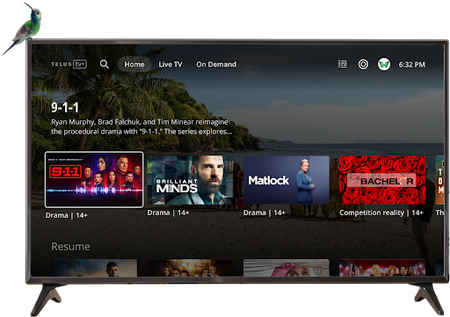
Big news! Your favourite shows, movies, and live TV channels are now just a click away on your LG and Samsung Smart TVs Streaming just got even more convenient! The TELUS TV+ experience you know and love is now available on your LG and Samsung Smart TVs, giving you yet another seamless way to enjoy entertainment right from your living room. What This Means for You No more switching between devices or dealing with complicated setups. Your entire TELUS TV+ library is now accessible directly through your Smart TV's interface. It's the same great experience, just more convenient than ever. Before You Start Make sure you have these requirements covered before diving in: Active Subscription: You'll need an active subscription to Optik TV, Stream+, or Pik TV (including live TV channels) Account Access: Have your My TELUS or Koodo login details ready Location: TELUS TV+ app is exclusively available in Canada Internet Connection: Some channels require TELUS home internet due to licensing restrictions Getting Started On your LG or Samsung Smart TV, go to the home menu and select "Apps" Use the search bar to find "TELUS TV Plus" and click to download and install Open the app, sign in with your My TELUS or Koodo credentials, and start watching! Don't have a My TELUS or Koodo account yet? No problem! You can register for a My TELUS account or Koodo account directly through the app to get started. FAQs: Everything You Need to Know Which Smart TVs are compatible? LG Smart TVs (2020 models and newer) Samsung Smart TVs (2021 models and newer) What features can I access on my Smart TV? You get the full TELUS TV+ experience: Live TV streaming On-demand content library 4K channel access Cloud recording management (local recordings require other devices) Can I purchase content directly on my Smart TV? On-demand purchases and rentals aren't yet available directly through Smart TVs. However, you can buy or rent content on another supported device and then watch it seamlessly on your TV. Are all my TV channels available? Absolutely! All 4K channels available through TELUS TV+ can be accessed on your Smart TV, giving you the complete viewing experience. Ready to Upgrade Your Streaming Experience? With TELUS TV+ now available on LG and Samsung Smart TVs, your entertainment setup just got a major upgrade. Grab your remote and start streaming your favourite content right from your living room. It's never been easier to enjoy TELUS TV+! Remember: TELUS TV+ is designed to work seamlessly across multiple devices. Explore other compatible options to enjoy your favourite shows and movies in even more ways, wherever you are!905Views2likes0CommentsSoftware Update Life-Cycle
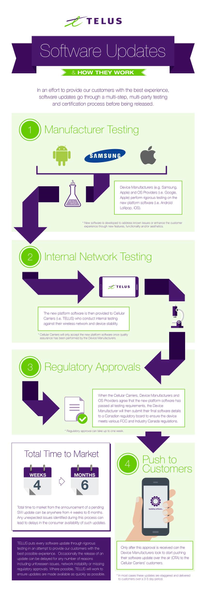
When a device is chosen to receive a software update, we make sure it's set up to deliver the best possible customer experience. To achieve this, the update goes through several steps involving multiple parties before it's released. Typically, a second version of the software is created based on feedback from TELUS and the device manufacturer. This new version is tested again to fix any issues found earlier. For a look at some of the upcoming device software releases, please see the Software Update article. Here’s a look at the life cycle of a software update: *Originally a blog by our Product Manager, MarcTELUS, we've republished the software lifecycle as an article as it still holds true today.56KViews1like0CommentsUltimate Guide - Transferring Content To Your New Phone
Most of us will upgrade our devices at some point and we'll all face the same dilemma: how do we transfer our info to the new device? For those of you going through this for the first time, we’ve compiled a list of resources from various manufacturers to help you get started. Apple iPhone to iPhone Apple Support has a great video HERE with some quick tips on how to transfer if you still have your old iPhone, and if you don't. For your additional reference, HERE is a handy Apple how-to guide for all things iOS. Switching over from Android to iOS Apple makes it very easy for you to switch over from your Android device. Make sure both devices are charging and connected to the same Wi-Fi network. Then download the Move to iOS app available on the Google Play Store to your Android device and you're almost there. Check out THIS link for all the steps. Google Pixel devices Switching from iOS and/or “other” devices Transferring content to your new Pixel device depends largely on the content itself. Google has put together a step by step guide on how to import your photos, music, contacts, and email/messages at their website HERE. Need to activate a new SIM card for your new device? Check out our guide on how to do that HERE. Is there an official content transfer process missing for a particular manufacturer? Leave a comment below and we’ll review it and update this article! Need more help? Contact us HERE for further assistance, or reach out to us over at our Facebook page and our team can help! FR version77KViews0likes7CommentsProtecting Your Smartphone
Protecting Your Smartphone It's an exciting time when a new phone arrives. We want you to make sure you're doing everything possible to keep that new device running smoothly and safely. Let's look at some handy tips for keeping your new smartphone safe. Protection An important first step to consider is buying a phone case to protect your brand new smartphone. Not just an accessory, they can provide peace of mind with shock-absorbing features, waterproofing, and extra grip. Always a smart move. Purchasing an extended warranty is also a good choice, as manufacturer warranties only cover hardware failure. Device Care Complete and AppleCare+ extend the manufacturer's warranty up to 2 years and add protection against accidental damage. Water Damage The key to preventing water damage to your smartphone is to plan and always be prepared. Not keeping your phone in your back pocket will prevent it from falling in the toilet or being sat on. Storing your phone in a sealed waterproof bag or case before you head to the pool or beach will also help. If your phone does get submerged, be sure to remove the battery if you can, and place it in a bowl or bag of rice overnight to absorb as much of the moisture as possible. If that doesn't do the trick, review your warranty guidelines or take it to the nearest TELUS store for repair options. Cracked Screen Some manufacturer warranties cover cracked screens in the first 30 days. If you're past that timeframe however, and you don't have an extended warranty, you can always visit the nearest TELUS store or try Mobile Klinik to look into your options for repair/replacement. Lost or Stolen Device Some common ways to lose your smartphone include leaving it on the rooftop of your car before getting in, or leaving it in a restaurant or store, etc. Always be aware of your surroundings and keep your phone stored safely when not in use. Ensure you have a lock code to protect it if anything should occur. Always remember, you can reach out to our Support team anytime at our Facebook page or by sending a private message to our TELUS_Support handle here if you need assistance. FR version2.2KViews0likes0CommentsUpgrading or Changing Your Smartphone
If you've recently upgraded or changed your smartphone, there are a number of things to be sure to do. We've got some resources below to help you with your new device. Ordering Online Most flagship devices are available for preorder the week before the official launch date. This is a great way to ensure you're getting the hottest new device from the convenience of your home. We all know though that the wait for that phone to arrive can be excruciating. To help, we recommend using our handy Online Order Tracking Tool to keep tabs on your order. We've even got info on how to use it over here! Swapping Your SIM If your previous phone used the same sized SIM as your new one, it's usually as easy as removing it and inserting the SIM into the new one. If you want to swap the SIM online, we've got a handy guide for that as well. If however, your new phone requires a different sized SIM or if you're a new TELUS client, you'll need to purchase one. We always suggest ordering one at the same time as your phone but if you forgot, you can easily order one online or pick one up at the nearest TELUS store. Transferring Content Check out our extensive guide for transferring data from your old phone to your new one. Protecting Your Device Now that your new phone is ready, let's talk about protecting it. An important first step in doing that is to consider a new phone case to protect your new smartphone. Not just an accessory, they can provide peace of mind with shock-absorbing features, waterproofing, and extra grip. Always a smart move. Purchasing an extended warranty is also a good choice, as manufacturer warranties only cover hardware failure. Device Care Complete and AppleCare+ extend the manufacturer's warranty up to 2 years and add protection against accidental damage. FR version14KViews0likes0CommentsWi-Fi Assist
Wi-Fi Assist Wi-Fi Assist is a feature that optimizes the handoff between a Wi-Fi network and your carrier's cellular data network. In the past, when your device left the effective range of a Wi-Fi network, it would try to maintain connection to that network as long as it could, even when the network's signal became too weak to be effective. Then, you'd have two choices: either turn Wi-Fi off or wait until your device was completely out of range and it would switch over to the cellular data network. How does Wi-Fi Assist work? Wi-Fi Assist regularly checks your device's Wi-Fi connection to determine signal strength. If the Wi-Fi signal performance drops, Wi-Fi Assist automatically switches to a cellular data connection until the Wi-Fi signal improves. By doing so, the handoff between your Wi-Fi and cellular data connections would be automatic and smooth. How can Wi-Fi Assist impact me? As this feature may increase the amount of time spent on the cellular data network, there is potential for higher data usage, and the Wi-Fi signal may disconnect more frequently if your device's Wi-Fi connection drops below a specific strength. How to turn Wi-Fi Assist ON or OFF Wi-Fi Assist is usually turned on by default. Once enabled, it operates in the background automatically. You can turn it on or off anytime by following these steps: Apple/iOS 1. Tap Settings. 2. Tap Cellular. 3. Scroll down to find the Wi-Fi Assist toggle. 4. Tap to turn the feature ON or OFF. Android 1. Go to your Start screen and swipe up or down to open the menu. 2. Tap Settings. 3. Tap Connections. 4. Tap Wi-Fi. 5. Tap to enable Wi-Fi. 6. Choose the Options symbol and select Advanced. 7. Tap to disable Switch to mobile data. Important Notes Wi-Fi Assist does not activate for some third-party apps that might use large amounts of data. For example, apps with audio or video streaming functionality, or email apps with features such as attachment downloads. If you are data roaming outside of Canada, Wi-Fi Assist will not automatically switch to a cellular data connection. For device specific data management tips, you can also check out our articles for iOS and Android. Version FR5.3KViews1like0CommentsMobile Klinik Device Checkup Tool
Mobile Klinik Device Checkup Tool The Mobile Klinik Device Checkup app has a number of great features. Not only can you optimize and troubleshoot hardware/software issues with your Android and iOS device, you can even book repair appointments, find the nearest Mobile Klinik store, and even check out your smartphone's resale value. Here's all the info you need to get started. How to download the Mobile Klinik app 1. Ensure that you have an active cellular or Wi-Fi connection. 2. Visit the Google Play store (Android) or Apple App store (iOS) and search for 'Mobile Klinik Device Checkup'. 3. Alternatively, if you select the new Diagnostics link available in the app itself you'll either be brought directly to the Google Play store or Apple App store prompting you to install, or have the app automatically launch if it's already installed. How to run a device checkup 1. Launch the Mobile Klinik Device checkup app (once installed) by tapping the icon from your smartphone's home screen. 2. *First time users* Accept the Terms & conditions and allow data usage access to use the app. Do this by following the prompts to open Settings (you'll be brought to the Usage Data Access section), find and select the app, tap to allow usage tracking, and go back to return to the app. 3. All tests will be selected by default, though you may select/deselect which tests you wish to perform including: Battery (battery health and usage) Storage (internal/external memory usage) Connectivity (Wi-Fi, Bluetooth, SIM) Data (data usage) Device (software updates and security) 4. Click Start at the bottom of the screen. *Note: The battery drain test (unless skipped on Android) will run for approx. 30 seconds and maximize your screen brightness, flash, and vibration functions to assess battery health. 5. Results summary will be displayed and colour-coded by severity level: Device alerts and critical updates - Red or Yellow Optimization recommendations - Green 6. Select the green chevron next to a results to see specific info about the test. How to check device value and repair options Device Value Tap 'Sell Your Phone' from the app home screen. Select 'Continue'. Complete the interactive tests and questions about your smartphone. Receive the device's value *Note: New devices may not retrieve a value, and value given is an estimate and will not be confirmed until you visit the nearest Mobile Klinik store. Repair Options Tap 'Repair' from the app home screen. Select the repair journey you need: Find a store, Book an appointment, or Call for a quote. Version FR3.8KViews1like0CommentsSamsung Galaxy Z Fold 4 and Asurion
This is a long one so strap in. In August of 2022 I upgraded to the Z Fold 4 and I loved it, however in December of 2023 after a flight home from Halifax I folded open my phone to discover it wasn't laying flat anymore (Which it was laying flat on the flight while I watched a movie and folded it up when the plane was landing and put the phone in my pocket) so I filed a claim through my Telus Device Care Complete which of course leads you to Asurion. Asurion only gave me the option to replace the whole phone for $610 which to me is unacceptable, I am not made of money here... the phone works fine other than the fact that it won't lay flat when opened. Upon calling Asurion they started gaslighting me into saying that this is the only option and there is no way on earth to repair or replace the hinges, so I asked them to connect me to Telus and they did, Telus found this unnacceptable and said to go find a Mobile Klinik and tell them I have a Telus Device Care plan and ask for a quote. I haven't gone to the Mobile Klinik yet sadly as I have been working 12 hour days and OT work and Telus said they were going to have to put Asurion under investigation for their complete lack of help but have not heard any word back on that yet. I know it is way later than when I originally filed the claim now but I will be getting a quote from Mobile Klinik this week for a repair cost and can hopefully update here if I remember. But all of this to say what is even the point of paying 15$ a month for device care on my bill if Telus can't even get me more help with this or get it fixed. Before they did their repairs through Asurion it was so much easier, I have only had one phone break a long time ago and it was shattered and they sent me a new replacement ASAP and I only paid $15 ...this is a minor repair...Telus...drop Asurion...they are garbage...2.8KViews2likes1Comment