iphone
8 TopicsSoftware Update Schedule
All dates are approximate and subject to change. Please note posted dates reflect when the update is targeted for release but can take a few weeks to roll out to all devices. Device Target Date Update Samsung XCover6 Pro Jul-4 Security Updates Samsung XCover7 Pro Jul-4 Security Updates Samsung GS25 FE Jul-4 Security Updates Samsung A36 Jul-4 Security Updates Samsung GS21 FE Jul-4 Security Updates Samsung GS21 FE W2 Jul-4 Security Updates Samsung A15 Jul-4 Security Updates Samsung Watch5 40mm Jul-4 Security Updates Samsung Watch5 44mm Jul-4 Security Updates Samsung Watch5 Pro Jul-4 Security Updates Samsung Galaxy Watch4 40mm Jul-4 Security Updates Samsung Galaxy Watch4 44mm Jul-4 Security Updates Samsung Galaxy Watch4 Classic 42mm Jul-4 Security Updates Samsung Galaxy Watch4 Classic 46mm Jul-4 Security Updates Moto RAZR (2025) Jul-6 Security Updates Moto G (2025) Jul-7 Security Updates Moto Edge (2024) Jul-8 Security Updates Moto G 5G (2025) Jul-14 Security Updates Moto Edge (2022) Jul-14 Security Updates Samsung GS25 Jul-17 Security Updates Samsung GS25+ Jul-17 Security Updates Samsung GS25 Ultra Jul-17 Security Updates Samsung GS25 Edge Jul-17 Security Updates Samsung GS25 FE Jul-17 Security Updates Samsung GS26 Jul-17 Security Updates Samsung GS26+ Jul-17 Security Updates Samsung GS26 Ultra Jul-17 Security Updates Samsung A37 Jul-17 Security Updates Samsung Tab S9 FE Jul-17 Security Updates Samsung Tab A11+ Jul-17 Security Updates Samsung Z Flip7 Jul-17 Security Updates Samsung Z Fold7 Jul-17 Security Updates Moto G (2026) Jul-20 Security Updates Samsung A56 Jul-24 Security Updates Samsung Z Flip6 Jul-24 Security Updates Samsung Z Fold6 Jul-24 Security Updates Samsung GS24 Jul-24 Security Updates Samsung GS24+ Jul-24 Security Updates Samsung GS24 Ultra Jul-24 Security Updates Samsung GS24 FE Jul-24 Security Updates Samsung XCover7 Pro Jul-24 Security Updates Moto Edge (2026) Jul-24 Optimizations Apple iPhone SE (2nd Gen) Jul-27 New iOS release Apple iPhone SE (3rd Gen) Jul-27 New iOS release Apple iPhone 11 Jul-27 New iOS release Apple iPhone 11 Pro Jul-27 New iOS release Apple iPhone 11 Pro Max Jul-27 New iOS release Apple iPhone 12 Jul-27 New iOS release Apple iPhone 12 mini Jul-27 New iOS release Apple iPhone 12 Pro Jul-27 New iOS release Apple iPhone 12 Pro Max Jul-27 New iOS release Apple iPhone 13 Jul-27 New iOS release Apple iPhone 13 mini Jul-27 New iOS release Apple iPhone 13 Pro Jul-27 New iOS release Apple iPhone 13 Pro Max Jul-27 New iOS release Apple iPhone 14 Jul-27 New iOS release Apple iPhone 14 Plus Jul-27 New iOS release Apple iPhone 14 Pro Jul-27 New iOS release Apple iPhone 14 Pro Max Jul-27 New iOS release Apple iPhone 15 Jul-27 New iOS release Apple iPhone 15 Plus Jul-27 New iOS release Apple iPhone 15 Pro Jul-27 New iOS release Apple iPhone 15 Pro Max Jul-27 New iOS release Apple iPhone 16e Jul-27 New iOS release Apple iPhone 16 Jul-27 New iOS release Apple iPhone 16 Plus Jul-27 New iOS release Apple iPhone 16 Pro Jul-27 New iOS release Apple iPhone 16 Pro Max Jul-27 New iOS release Apple iPhone Air Jul-27 New iOS release Apple iPhone 17e Jul-27 New iOS release Apple iPhone 17 Jul-27 New iOS release Apple iPhone 17 Pro Jul-27 New iOS release Apple iPhone 17 Pro Max Jul-27 New iOS release Apple iPad (8th Gen) Jul-27 New iPadOS release Apple iPad (9th Gen) Jul-27 New iPadOS release Apple iPad (10th Gen) Jul-27 New iPadOS release Apple iPad A16 (11th Gen) Jul-27 New iPadOS release Apple iPad Air (3rd Gen) Jul-27 New iPadOS release Apple iPad Air (4th Gen) Jul-27 New iPadOS release Apple iPad Air (5th Gen) Jul-27 New iPadOS release Apple iPad Air 13" M2 Jul-27 New iPadOS release Apple iPad Air 11" M2 Jul-27 New iPadOS release Apple iPad Air 11" M3 Jul-27 New iPadOS release Apple iPad Air 11" M4 Jul-27 New iPadOS release Apple iPad Air 13" M3 Jul-27 New iPadOS release Apple iPad Air 13" M4 Jul-27 New iPadOS release Apple iPad mini (5th Gen) Jul-27 New iPadOS release Apple iPad mini 6 Jul-27 New iPadOS release Apple iPad mini (A17 Pro) Jul-27 New iPadOS release Apple iPad Pro 11 (2nd Gen) Jul-27 New iPadOS release Apple iPad Pro 11 (3rd Gen) Jul-27 New iPadOS release Apple iPad Pro 11 (4th Gen) Jul-27 New iPadOS release Apple iPad Pro 11" M4 Jul-27 New iPadOS release Apple iPad Pro 12.9 (3rd Gen) Jul-27 New iPadOS release Apple iPad Pro 12.9 (4th Gen) Jul-27 New iPadOS release Apple iPad Pro 12.9 (5th Gen) Jul-27 New iPadOS release Apple iPad Pro 12.9 (6th Gen) Jul-27 New iPadOS release Apple iPad Pro 13" M4 Jul-27 New iPadOS release Apple iPad Pro 11" M5 Jul-27 New iPadOS release Apple iPad Pro 13" M5 Jul-27 New iPadOS release Apple iPad Pro 13" M4 Jul-27 New iPadOS release Apple iPad Pro 11" M5 Jul-27 New iPadOS release Apple iPad Pro 13" M5 Jul-27 New iPadOS release Apple Watch SE (2nd Gen) Jul-27 New watchOS release Apple Watch SE3 Jul-27 New watchOS release Apple Watch Series 6 Jul-27 New watchOS release Apple Watch Series 7 Jul-27 New watchOS release Apple Watch Series 8 Jul-27 New watchOS release Apple Watch Series 9 Jul-27 New watchOS release Apple Watch Series 10 Jul-27 New watchOS release Apple Watch Series 11 Jul-27 New watchOS release Apple Watch Ultra Jul-27 New watchOS release Apple Watch Ultra 2 Jul-27 New watchOS release Apple Watch Ultra 3 Jul-27 New watchOS release Moto Edge (2026) Jul-28 Optimizations Samsung Z Flip4 Jul-31 Security Updates Samsung Z Fold4 Jul-31 Security Updates Samsung Z Flip5 Jul-31 Security Updates Samsung Z Fold5 Jul-31 Security Updates Samsung A57 Jul-31 Security Updates Samsung GS23 FE Jul-31 Security Updates Samsung Z Flip6 Jul-31 Optimizations Samsung Z Fold6 Jul-31 Optimizations Samsung Z Fold8 Ultra Jul-31 Optimizations Samsung A54 Jul-31 Security Updates Samsung XCover6 Pro Jul-31 Security Updates Samsung Tab A9+ Jul-31 Security Updates Moto Edge (2025) Aug-5 Security Updates Moto G Play (2024) Aug-5 Security Updates Moto Edge (2023) Aug-6 Security Updates Moto RAZR+ (2023) Aug-10 Security Updates Moto Edge (2024) Aug-10 Android 16 Moto RAZR+ (2023) Aug-11 Android 16 Last updated: July 31, 2026 Get notified first about our schedule updates by clicking on the bell icon in the upper right part of this page to "Follow" this topic. Version Fr424KViews6likes0CommentsReporting Spam
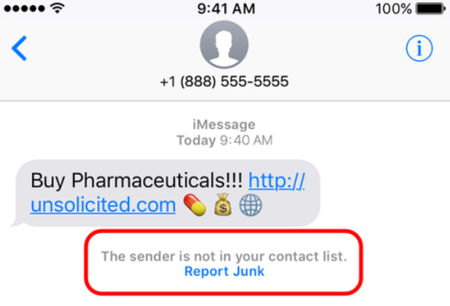
Here at TELUS we are constantly working to prevent spam texts and other fraudulent communications from reaching our customers. There are actions you can take as well to not only spot a spam message but to report it to our team for investigation. The main things to remember if you receive a spam text message are: Forward the spam message to the shortcode 7726 (SPAM). If you're receiving more than one, we recommend putting 7726 into your contact list so it's easily remembered. Don't respond directly to the number that sent you the spam text. This will alert the spammer that your number is genuine and active. If you're not able to view the number or if it's email spam, forward us the entire message (along with the subject header if it's an email). How To Forward a Spam Text From Your Phone To 7726 iPhone 1. Touch and hold the message 2. Select More 3. Select the message you want to forward, then select the arrow in the bottom right corner 4. Enter 7726 5. Select Send Android / Windows 1. Press the message (be careful not to activate / tap on a link) 2. Choose Forward (from the menu) 3. Forward to 7726 *Reporting spam to 7726 is free. Messages forwarded to 7726 don't count toward your data or Messaging bucket iMessage Spam Reporting The key difference between an iMessage and an SMS message is the colour of the text. An iMessage text appears in a blue bubble, whereas an SMS message appears in a green bubble. If the spam text you receive appears in green, you may need to report it using the steps above. If the spam is an iMessage and comes from someone not saved in your contacts, you'll see a message stating that "the sender is not in your contact list" and you'll have the option to Report junk. Alternatively, you can send an email to [email protected] with this information: A screenshot of the message The email address or phone number that sent you the iMessage The date and time you received the spam iMessage Android Spam Reporting To report a spam message on your Android device: On your Android phone or tablet, open the Messages app Touch and hold the conversation you want to report Tap Block --> Report Spam --> OK You can also open a conversation and report it as spam. From the conversation, tap More Options --> Details --> Block & Report Spam --> OK Please note: This is for SMS/MMS spam only. If you receive email spam, it can be reported directly by forwarding it to [email protected] If you have further questions about spam messaging or any other messages you receive, don't hesitate to ask the community at our Neighbourhood Forums or reach out to us over at our Facebook page as well. FR version8.7KViews4likes2CommentsHow To Block Unwanted Calls and Texts on iPhone
Unwanted calls and messages disrupt your day. Your iPhone includes built-in blocking features to stop these contacts permanently. Block a Text Message Sender Open the message conversation from the contact you want to block Tap the name or number at the top of the screen Tap the info button (ⓘ) in the top right corner Scroll to the bottom and select "Block this Caller" The contact can no longer send you messages or call you. Block a Phone Number Open the Phone app and go to your recent calls Find the number you want to block in your call history Tap the info icon (ⓘ) next to that number Scroll to the bottom and select "Block this Caller" This number will no longer be able to reach you by call or text. Unblock a Contact Open Settings on your iPhone Scroll down and tap "Phone" Select "Blocked Contacts" Tap "Edit" in the top right corner Tap the red minus sign (−) next to the contact you want to unblock Tap "Unblock" when it appears The contact can now reach you again by call and text. When to Contact TELUS If you continue receiving spam calls despite blocking numbers, ask TELUS about Call Control. This free feature adds an extra layer of protection by requiring unknown callers to press a number before connecting to you, which stops most robocalls automatically. Version Fr445Views0likes0CommentsHow to Find Your Device's MAC Address
Follow these device-specific instructions to locate your MAC (Media Access Control) address for network setup and troubleshooting. Android Devices Android Tablets: Open Settings from home screen Tap About tablet Select Status Find Wi-Fi MAC address Android Phones: Open Settings Select About phone Tap Status Locate Wi-Fi MAC address Apple Devices iPhone/iPad: Open Settings Tap Wi-Fi Tap the ⓘ when connected to your network Find "Wi-Fi Address" MacBook Pro: Open System Preferences Select Wi-Fi Tap the ⓘ when connected to your network Look for "Wi-Fi Address" Windows 11 Click your start menu Go to Settings Network & Internet Tap on your network underneath the Wi-Fi toggle Scroll down until you see Physical Address (MAC) Important Notes MAC address is 12 characters long Appears as alphanumeric code Unique for each device Required for network setup When to Contact TELUS Contact TELUS support if you: Are unable to find the MAC address Experience network connection issues Have device registration problems Need setup assistance479Views0likes0CommentsProtecting Your Smartphone
Protecting Your Smartphone It's an exciting time when a new phone arrives. We want you to make sure you're doing everything possible to keep that new device running smoothly and safely. Let's look at some handy tips for keeping your new smartphone safe. Protection An important first step to consider is buying a phone case to protect your brand new smartphone. Not just an accessory, they can provide peace of mind with shock-absorbing features, waterproofing, and extra grip. Always a smart move. Purchasing an extended warranty is also a good choice, as manufacturer warranties only cover hardware failure. Device Care Complete and AppleCare+ extend the manufacturer's warranty up to 2 years and add protection against accidental damage. Water Damage The key to preventing water damage to your smartphone is to plan and always be prepared. Not keeping your phone in your back pocket will prevent it from falling in the toilet or being sat on. Storing your phone in a sealed waterproof bag or case before you head to the pool or beach will also help. If your phone does get submerged, be sure to remove the battery if you can, and place it in a bowl or bag of rice overnight to absorb as much of the moisture as possible. If that doesn't do the trick, review your warranty guidelines or take it to the nearest TELUS store for repair options. Cracked Screen Some manufacturer warranties cover cracked screens in the first 30 days. If you're past that timeframe however, and you don't have an extended warranty, you can always visit the nearest TELUS store or try Mobile Klinik to look into your options for repair/replacement. Lost or Stolen Device Some common ways to lose your smartphone include leaving it on the rooftop of your car before getting in, or leaving it in a restaurant or store, etc. Always be aware of your surroundings and keep your phone stored safely when not in use. Ensure you have a lock code to protect it if anything should occur. Always remember, you can reach out to our Support team anytime at our Facebook page or by sending a private message to our TELUS_Support handle here if you need assistance. FR version2.1KViews0likes0CommentsUpgrading or Changing Your Smartphone
If you've recently upgraded or changed your smartphone, there are a number of things to be sure to do. We've got some resources below to help you with your new device. Ordering Online Most flagship devices are available for preorder the week before the official launch date. This is a great way to ensure you're getting the hottest new device from the convenience of your home. We all know though that the wait for that phone to arrive can be excruciating. To help, we recommend using our handy Online Order Tracking Tool to keep tabs on your order. We've even got info on how to use it over here! Swapping Your SIM If your previous phone used the same sized SIM as your new one, it's usually as easy as removing it and inserting the SIM into the new one. If you want to swap the SIM online, we've got a handy guide for that as well. If however, your new phone requires a different sized SIM or if you're a new TELUS client, you'll need to purchase one. We always suggest ordering one at the same time as your phone but if you forgot, you can easily order one online or pick one up at the nearest TELUS store. Transferring Content Check out our extensive guide for transferring data from your old phone to your new one. Protecting Your Device Now that your new phone is ready, let's talk about protecting it. An important first step in doing that is to consider a new phone case to protect your new smartphone. Not just an accessory, they can provide peace of mind with shock-absorbing features, waterproofing, and extra grip. Always a smart move. Purchasing an extended warranty is also a good choice, as manufacturer warranties only cover hardware failure. Device Care Complete and AppleCare+ extend the manufacturer's warranty up to 2 years and add protection against accidental damage. FR version13KViews0likes0CommentsWi-Fi Assist
Wi-Fi Assist Wi-Fi Assist is a feature that optimizes the handoff between a Wi-Fi network and your carrier's cellular data network. In the past, when your device left the effective range of a Wi-Fi network, it would try to maintain connection to that network as long as it could, even when the network's signal became too weak to be effective. Then, you'd have two choices: either turn Wi-Fi off or wait until your device was completely out of range and it would switch over to the cellular data network. How does Wi-Fi Assist work? Wi-Fi Assist regularly checks your device's Wi-Fi connection to determine signal strength. If the Wi-Fi signal performance drops, Wi-Fi Assist automatically switches to a cellular data connection until the Wi-Fi signal improves. By doing so, the handoff between your Wi-Fi and cellular data connections would be automatic and smooth. How can Wi-Fi Assist impact me? As this feature may increase the amount of time spent on the cellular data network, there is potential for higher data usage, and the Wi-Fi signal may disconnect more frequently if your device's Wi-Fi connection drops below a specific strength. How to turn Wi-Fi Assist ON or OFF Wi-Fi Assist is usually turned on by default. Once enabled, it operates in the background automatically. You can turn it on or off anytime by following these steps: Apple/iOS 1. Tap Settings. 2. Tap Cellular. 3. Scroll down to find the Wi-Fi Assist toggle. 4. Tap to turn the feature ON or OFF. Android 1. Go to your Start screen and swipe up or down to open the menu. 2. Tap Settings. 3. Tap Connections. 4. Tap Wi-Fi. 5. Tap to enable Wi-Fi. 6. Choose the Options symbol and select Advanced. 7. Tap to disable Switch to mobile data. Important Notes Wi-Fi Assist does not activate for some third-party apps that might use large amounts of data. For example, apps with audio or video streaming functionality, or email apps with features such as attachment downloads. If you are data roaming outside of Canada, Wi-Fi Assist will not automatically switch to a cellular data connection. For device specific data management tips, you can also check out our articles for iOS and Android. Version FR5.2KViews1like0Comments