android
6 TopicsSoftware Update Schedule
All dates are approximate and subject to change. Please note posted dates reflect when the update is targeted for release but can take a few weeks to roll out to all devices. Device Target Date Update Samsung GS26 FE Sep-18 Security Updates Samsung A57 Sep-18 Security Updates Samsung A56 Sep-18 Security Updates Samsung A36 Sep-18 Security Updates Samsung Watch9 40/44mm Sep-18 Security Updates Samsung Watch Ultra2 Sep-18 Security Updates Samsung Z Flip8 Sep-21 Optimizations + Security Updates Samsung Z Fold8 Sep-21 Optimizations + Security Updates Samsung Z Fold8 Ultra Sep-21 Optimizations + Security Updates Apple Watch SE3 Sep-23 New watchOS release Apple Watch Series 12 Sep-23 New watchOS release Apple Watch Ultra 4 Sep-23 New watchOS release Samsung XCover7 Pro Sep-25 Security Updates Samsung A35 Sep-25 Security Updates Samsung A53 Sep-25 Security Updates Samsung A17 Sep-25 Security Updates Moto Edge (2026) Sep-25 Security Updates Samsung GS26 Sep-29 Optimizations + Security Updates Samsung GS26+ Sep-29 Optimizations + Security Updates Samsung GS26 Ultra Sep-29 Optimizations + Security Updates Samsung GS23 FE Oct-2 Security Updates Samsung GS26 FE Oct-2 Security Updates Samsung A54 Oct-2 Security Updates Samsung XCover6 Pro Oct-2 Security Updates Samsung A16 Oct-2 Security Updates Samsung GS25 Oct-5 Optimizations + Security Updates Samsung GS25+ Oct-5 Optimizations + Security Updates Samsung GS25 Ultra Oct-5 Optimizations + Security Updates Samsung GS25 Edge Oct-5 Optimizations + Security Updates Samsung GS25 FE Oct-5 Optimizations + Security Updates Samsung Z Flip7 Oct-5 Optimizations + Security Updates Samsung Z Fold7 Oct-5 Optimizations + Security Updates Moto G (2026) Oct-5 Optimizations Moto G 5G (2024) Oct-5 Optimizations Moto RAZR+ (2023) Oct-6 Security Updates Google Pixel 6 Oct-6 Optimizations + Security Updates Google Pixel 6 Pro Oct-6 Optimizations + Security Updates Google Pixel 6a Oct-6 Optimizations + Security Updates Google Pixel 7 Oct-6 Optimizations + Security Updates Google Pixel 7 Pro Oct-6 Optimizations + Security Updates Google Pixel 7a Oct-6 Optimizations + Security Updates Google Pixel 8 Oct-6 Optimizations + Security Updates Google Pixel 8 Pro Oct-6 Optimizations + Security Updates Google Pixel 8a Oct-6 Optimizations + Security Updates Google Pixel 9 Oct-6 Optimizations + Security Updates Google Pixel 9 Pro Oct-6 Optimizations + Security Updates Google Pixel 9 Pro XL Oct-6 Optimizations + Security Updates Google Pixel 9 Pro Fold Oct-6 Optimizations + Security Updates Google Pixel 9a Oct-6 Optimizations + Security Updates Google Pixel 10 Oct-6 Optimizations + Security Updates Google Pixel 10 Pro Oct-6 Optimizations + Security Updates Google Pixel 10 Pro XL Oct-6 Optimizations + Security Updates Google Pixel 10 Pro Fold Oct-6 Optimizations + Security Updates Google Pixel 10a Oct-6 Optimizations + Security Updates Google Pixel 11 Oct-6 Optimizations + Security Updates Google Pixel 11 Pro Oct-6 Optimizations + Security Updates Google Pixel 11 Pro XL Oct-6 Optimizations + Security Updates Google Pixel 11 Pro Fold Oct-6 Optimizations + Security Updates Samsung GS26 Oct-9 Security Updates Samsung GS26+ Oct-9 Security Updates Samsung GS26 Ultra Oct-9 Security Updates Samsung Tab A11+ Oct-9 Security Updates Moto Edge (2024) Oct-12 Security Updates Moto Edge (2025) Oct-12 Security Updates Moto RAZR+ (2024) Oct-12 Security Updates Moto Edge (2024) Oct-12 Security Updates Moto Edge (2025) Oct-12 Security Updates Moto G (2025) Oct-14 Security Updates SAMSUNG Tab A9+ Oct-14 Optimizations + Security Updates SAMSUNG GS24 Oct-15 Android 17 Update SAMSUNG GS24+ Oct-15 Android 17 Update SAMSUNG GS24 Ultra Oct-15 Android 17 Update SAMSUNG GS24 FE Oct-15 Android 17 Update SAMSUNG Tab S9 FE Oct-16 Security Updates SAMSUNG A53 Oct-27 Optimizations + Security Updates Last updated: Oct 16, 2026 Get notified first about our schedule updates by clicking on the bell icon in the upper right part of this page to "Follow" this topic. Version Fr433KViews7likes0CommentsReporting Spam
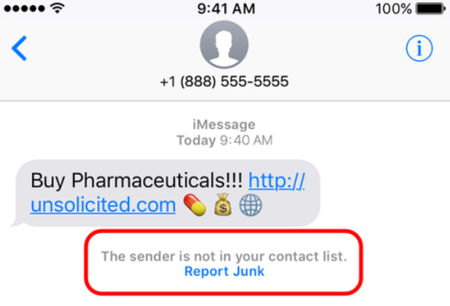
Here at TELUS we are constantly working to prevent spam texts and other fraudulent communications from reaching our customers. There are actions you can take as well to not only spot a spam message but to report it to our team for investigation. The main things to remember if you receive a spam text message are: Forward the spam message to the shortcode 7726 (SPAM). If you're receiving more than one, we recommend putting 7726 into your contact list so it's easily remembered. Don't respond directly to the number that sent you the spam text. This will alert the spammer that your number is genuine and active. If you're not able to view the number or if it's email spam, forward us the entire message (along with the subject header if it's an email). How To Forward a Spam Text From Your Phone To 7726 iPhone 1. Touch and hold the message 2. Select More 3. Select the message you want to forward, then select the arrow in the bottom right corner 4. Enter 7726 5. Select Send Android / Windows 1. Press the message (be careful not to activate / tap on a link) 2. Choose Forward (from the menu) 3. Forward to 7726 *Reporting spam to 7726 is free. Messages forwarded to 7726 don't count toward your data or Messaging bucket iMessage Spam Reporting The key difference between an iMessage and an SMS message is the colour of the text. An iMessage text appears in a blue bubble, whereas an SMS message appears in a green bubble. If the spam text you receive appears in green, you may need to report it using the steps above. If the spam is an iMessage and comes from someone not saved in your contacts, you'll see a message stating that "the sender is not in your contact list" and you'll have the option to Report junk. Alternatively, you can send an email to [email protected] with this information: A screenshot of the message The email address or phone number that sent you the iMessage The date and time you received the spam iMessage Android Spam Reporting To report a spam message on your Android device: On your Android phone or tablet, open the Messages app Touch and hold the conversation you want to report Tap Block --> Report Spam --> OK You can also open a conversation and report it as spam. From the conversation, tap More Options --> Details --> Block & Report Spam --> OK Please note: This is for SMS/MMS spam only. If you receive email spam, it can be reported directly by forwarding it to [email protected] If you have further questions about spam messaging or any other messages you receive, don't hesitate to ask the community at our Neighbourhood Forums or reach out to us over at our Facebook page as well. FR version8.9KViews4likes2CommentsBack Up Your Android Device
Device failure, loss, or damage can permanently erase contacts, photos, and important files. Regular backups ensure you can recover this data and transfer it to replacement devices. Why Regular Backups Matter Recovers the most recent version of your data after device problems Stores information beyond your phone's physical storage Enables data transfer to new or additional devices Provides immediate access to files when needed Backup Methods Computer Transfer via USB Cable Connect your Android device to your computer using a USB cable Press the Menu key on your device and select "USB connection" Tap "OK" when prompted for USB mass storage mode Open the removable disk that appears on your computer Create a new folder (name it with your phone model and current date) Drag and drop files from your device into this folder Cloud Storage Services Cloud applications store your data on internet-accessible servers, allowing backup and file access from any connected device. Popular options include Box, Google Drive, and Dropbox. Google Account Sync (Built-in Android Feature) Download your preferred cloud app to your device Open Settings on your Android device Select your Google account from the accounts list Check the boxes next to all data types you want to back up Tap "More," then select "Sync Now" Your selected data uploads to Google's servers immediately. Configure automatic periodic backups in your account settings to maintain current backups without manual intervention. Version Fr235Views0likes0CommentsHow To Block Unwanted Calls and Texts on Android
Unwanted calls and messages disrupt your day. Your Android device includes built-in blocking features to stop these contacts permanently. Block a Text Message Sender Open the Messages app on your home screen Touch and hold the conversation you want to block Tap the Block icon Tap "OK" to confirm The contact can no longer send you messages. Block a Phone Number Open the Phone app Tap the three vertical dots (More) and select "Call history" Tap the call from the number you want to block Tap "Block / report spam" This number will no longer be able to reach you by call or text. Block All Unknown Callers Open the Phone app Tap the three vertical dots (More) Tap "Settings" then "Blocked numbers" Turn on "Unknown" Private and unidentified numbers cannot reach you. You will still receive calls from numbers not saved in your contacts. Unblock a Text Message Contact Open the Messages app Tap "More Options" then "Spam & blocked" Select the contact from the list Tap "Unblock" Unblock a Phone Number Open the Phone app Tap the three vertical dots (More) Tap "Settings" then "Blocked numbers" Select the contact from the list Tap "Clear" then "Unblock" The contact can now reach you again by call and text. When to Contact TELUS If you continue receiving spam calls despite blocking numbers, ask TELUS about Call Control. This free feature adds an extra layer of protection by requiring unknown callers to press a number before connecting to you, which stops most robocalls automatically. Version Fr747Views0likes0CommentsUltimate Guide - Transferring Content To Your New Phone
Most of us will upgrade our devices at some point and we'll all face the same dilemma: how do we transfer our info to the new device? For those of you going through this for the first time, we’ve compiled a list of resources from various manufacturers to help you get started. Apple iPhone to iPhone Apple Support has a great video HERE with some quick tips on how to transfer if you still have your old iPhone, and if you don't. For your additional reference, HERE is a handy Apple how-to guide for all things iOS. Switching over from Android to iOS Apple makes it very easy for you to switch over from your Android device. Make sure both devices are charging and connected to the same Wi-Fi network. Then download the Move to iOS app available on the Google Play Store to your Android device and you're almost there. Check out THIS link for all the steps. Google Pixel devices Switching from iOS and/or “other” devices Transferring content to your new Pixel device depends largely on the content itself. Google has put together a step by step guide on how to import your photos, music, contacts, and email/messages at their website HERE. Need to activate a new SIM card for your new device? Check out our guide on how to do that HERE. Is there an official content transfer process missing for a particular manufacturer? Leave a comment below and we’ll review it and update this article! Need more help? Contact us HERE for further assistance, or reach out to us over at our Facebook page and our team can help! FR version77KViews0likes7CommentsMobile Klinik Device Checkup Tool
Mobile Klinik Device Checkup Tool The Mobile Klinik Device Checkup app has a number of great features. Not only can you optimize and troubleshoot hardware/software issues with your Android and iOS device, you can even book repair appointments, find the nearest Mobile Klinik store, and even check out your smartphone's resale value. Here's all the info you need to get started. How to download the Mobile Klinik app 1. Ensure that you have an active cellular or Wi-Fi connection. 2. Visit the Google Play store (Android) or Apple App store (iOS) and search for 'Mobile Klinik Device Checkup'. 3. Alternatively, if you select the new Diagnostics link available in the app itself you'll either be brought directly to the Google Play store or Apple App store prompting you to install, or have the app automatically launch if it's already installed. How to run a device checkup 1. Launch the Mobile Klinik Device checkup app (once installed) by tapping the icon from your smartphone's home screen. 2. *First time users* Accept the Terms & conditions and allow data usage access to use the app. Do this by following the prompts to open Settings (you'll be brought to the Usage Data Access section), find and select the app, tap to allow usage tracking, and go back to return to the app. 3. All tests will be selected by default, though you may select/deselect which tests you wish to perform including: Battery (battery health and usage) Storage (internal/external memory usage) Connectivity (Wi-Fi, Bluetooth, SIM) Data (data usage) Device (software updates and security) 4. Click Start at the bottom of the screen. *Note: The battery drain test (unless skipped on Android) will run for approx. 30 seconds and maximize your screen brightness, flash, and vibration functions to assess battery health. 5. Results summary will be displayed and colour-coded by severity level: Device alerts and critical updates - Red or Yellow Optimization recommendations - Green 6. Select the green chevron next to a results to see specific info about the test. How to check device value and repair options Device Value Tap 'Sell Your Phone' from the app home screen. Select 'Continue'. Complete the interactive tests and questions about your smartphone. Receive the device's value *Note: New devices may not retrieve a value, and value given is an estimate and will not be confirmed until you visit the nearest Mobile Klinik store. Repair Options Tap 'Repair' from the app home screen. Select the repair journey you need: Find a store, Book an appointment, or Call for a quote. Version FR3.8KViews1like0Comments