android
16 TopicsSoftware Update Schedule
All dates are approximate and subject to change. Please note posted dates reflect when the update is targeted for release but can take a few weeks to roll out to all devices. Device Target Date Update Samsung GS26 FE Sep-18 Security Updates Samsung A57 Sep-18 Security Updates Samsung A56 Sep-18 Security Updates Samsung A36 Sep-18 Security Updates Samsung Watch9 40/44mm Sep-18 Security Updates Samsung Watch Ultra2 Sep-18 Security Updates Samsung Z Flip8 Sep-21 Optimizations + Security Updates Samsung Z Fold8 Sep-21 Optimizations + Security Updates Samsung Z Fold8 Ultra Sep-21 Optimizations + Security Updates Apple Watch SE3 Sep-23 New watchOS release Apple Watch Series 12 Sep-23 New watchOS release Apple Watch Ultra 4 Sep-23 New watchOS release Samsung XCover7 Pro Sep-25 Security Updates Samsung A35 Sep-25 Security Updates Samsung A53 Sep-25 Security Updates Samsung A17 Sep-25 Security Updates Moto Edge (2026) Sep-25 Security Updates Samsung GS26 Sep-29 Optimizations + Security Updates Samsung GS26+ Sep-29 Optimizations + Security Updates Samsung GS26 Ultra Sep-29 Optimizations + Security Updates Samsung GS23 FE Oct-2 Security Updates Samsung GS26 FE Oct-2 Security Updates Samsung A54 Oct-2 Security Updates Samsung XCover6 Pro Oct-2 Security Updates Samsung A16 Oct-2 Security Updates Samsung GS25 Oct-5 Optimizations + Security Updates Samsung GS25+ Oct-5 Optimizations + Security Updates Samsung GS25 Ultra Oct-5 Optimizations + Security Updates Samsung GS25 Edge Oct-5 Optimizations + Security Updates Samsung GS25 FE Oct-5 Optimizations + Security Updates Samsung Z Flip7 Oct-5 Optimizations + Security Updates Samsung Z Fold7 Oct-5 Optimizations + Security Updates Moto G (2026) Oct-5 Optimizations Moto G 5G (2024) Oct-5 Optimizations Moto RAZR+ (2023) Oct-6 Security Updates Google Pixel 6 Oct-6 Optimizations + Security Updates Google Pixel 6 Pro Oct-6 Optimizations + Security Updates Google Pixel 6a Oct-6 Optimizations + Security Updates Google Pixel 7 Oct-6 Optimizations + Security Updates Google Pixel 7 Pro Oct-6 Optimizations + Security Updates Google Pixel 7a Oct-6 Optimizations + Security Updates Google Pixel 8 Oct-6 Optimizations + Security Updates Google Pixel 8 Pro Oct-6 Optimizations + Security Updates Google Pixel 8a Oct-6 Optimizations + Security Updates Google Pixel 9 Oct-6 Optimizations + Security Updates Google Pixel 9 Pro Oct-6 Optimizations + Security Updates Google Pixel 9 Pro XL Oct-6 Optimizations + Security Updates Google Pixel 9 Pro Fold Oct-6 Optimizations + Security Updates Google Pixel 9a Oct-6 Optimizations + Security Updates Google Pixel 10 Oct-6 Optimizations + Security Updates Google Pixel 10 Pro Oct-6 Optimizations + Security Updates Google Pixel 10 Pro XL Oct-6 Optimizations + Security Updates Google Pixel 10 Pro Fold Oct-6 Optimizations + Security Updates Google Pixel 10a Oct-6 Optimizations + Security Updates Google Pixel 11 Oct-6 Optimizations + Security Updates Google Pixel 11 Pro Oct-6 Optimizations + Security Updates Google Pixel 11 Pro XL Oct-6 Optimizations + Security Updates Google Pixel 11 Pro Fold Oct-6 Optimizations + Security Updates Samsung GS26 Oct-9 Security Updates Samsung GS26+ Oct-9 Security Updates Samsung GS26 Ultra Oct-9 Security Updates Samsung Tab A11+ Oct-9 Security Updates Moto Edge (2024) Oct-12 Security Updates Moto Edge (2025) Oct-12 Security Updates Moto RAZR+ (2024) Oct-12 Security Updates Moto Edge (2024) Oct-12 Security Updates Moto Edge (2025) Oct-12 Security Updates Moto G (2025) Oct-14 Security Updates SAMSUNG Tab A9+ Oct-14 Optimizations + Security Updates SAMSUNG GS24 Oct-15 Android 17 Update SAMSUNG GS24+ Oct-15 Android 17 Update SAMSUNG GS24 Ultra Oct-15 Android 17 Update SAMSUNG GS24 FE Oct-15 Android 17 Update SAMSUNG Tab S9 FE Oct-16 Security Updates SAMSUNG A53 Oct-27 Optimizations + Security Updates Last updated: Oct 16, 2026 Get notified first about our schedule updates by clicking on the bell icon in the upper right part of this page to "Follow" this topic. Version Fr433KViews7likes0Comments
New Telus TV Android Device questions
I received a Telus email saying my current TV box technology (made by Cisco with the PVR having a 320GB internal hard drive) will be discontinued soon and I should upgrade to the new TV boxes which appear to be Android based. The Telus web page describing the update is not clear on how the PVR recordings and cloud will work in the new system. At one point it says my current recordings will be moved to the new box. However I believe the new box only has a small amount of storage so I don’t think my 250GB of old recordings can fit in the new box. So will my old recordings actually get copied to the cloud? Another part of the Telus web page says I need to have the cloud recording feature on my account. I don’t have this. Do I need to have Cloud Recording activated (probably for an extra monthly fee) to use PVR recordings? I can see how Cloud Recording would be required if I wanted to watch one of my PVR recordings at a hotel or other random location. Do I need to have Cloud Recording even to watch a PVR recording on my home TV? If all PVR recordings will be on the cloud, it seems to me that a customer who records and watches several hours of videos each day will be using a lot of internet data. My account has a 300GB monthly data limit. Will I need to upgrade to an account with unlimited data?Solved276Views0likes3Comments
SmartHome+ App ideas
Been using the Android SmartHome+ app with my outdoor camera for a year and have some suggestions. Posts like this should be out in the open for comment, not hidden on a Support team list. 1 - Detection needs to be improved. When I scan through clips I see that my wife left the house and apparently never returned. No, it wasn't a foggy day and she didn't come in through some other door. I wonder what else was not captured in video? 2 - Classification is useless. The 90% case is one person walking to the front door, perhaps with a bag. Those get classified as Person, Person and Motion, or Person and Animal. There was always a Person, always Motion and never an Animal so what's the criteria? One clip said Package when something was on the porch for over a day, and a person just walked past it. It didn't get called Person or Motion, just Package. ALL of those classifications are effectively the same as "Something was seen". 3 - File management is clumsy. For whatever reason I may have 50+ recent clips saved. I'd like to be able to select many of them and delete them all at once. Just like in File Manager: click on one and shift-click on another to select those two and everything in between and then just hit delete once. 4 - Temporary ignore. If we're going to be in the camera's view doing something I don't need 50+ clips of us doing that. I want to tell to tell the camera to stop recording for the next {variable} number of minutes - 30, 60, 90 - some selection from a list. After that timer expires, start paying attention again. 5 - Reboot. As a troubleshooting step I'd like to be able to use the app to tell the camera to reboot itself. That saves me having to get a ladder and climb into the attic to find where the camera is plugged in to power cycle it. That's my fault for installing it there, but still, it would make things easier. Other ideas for improvements?357Views0likes3CommentsReporting Spam
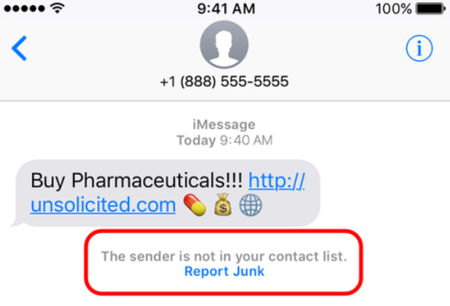
Here at TELUS we are constantly working to prevent spam texts and other fraudulent communications from reaching our customers. There are actions you can take as well to not only spot a spam message but to report it to our team for investigation. The main things to remember if you receive a spam text message are: Forward the spam message to the shortcode 7726 (SPAM). If you're receiving more than one, we recommend putting 7726 into your contact list so it's easily remembered. Don't respond directly to the number that sent you the spam text. This will alert the spammer that your number is genuine and active. If you're not able to view the number or if it's email spam, forward us the entire message (along with the subject header if it's an email). How To Forward a Spam Text From Your Phone To 7726 iPhone 1. Touch and hold the message 2. Select More 3. Select the message you want to forward, then select the arrow in the bottom right corner 4. Enter 7726 5. Select Send Android / Windows 1. Press the message (be careful not to activate / tap on a link) 2. Choose Forward (from the menu) 3. Forward to 7726 *Reporting spam to 7726 is free. Messages forwarded to 7726 don't count toward your data or Messaging bucket iMessage Spam Reporting The key difference between an iMessage and an SMS message is the colour of the text. An iMessage text appears in a blue bubble, whereas an SMS message appears in a green bubble. If the spam text you receive appears in green, you may need to report it using the steps above. If the spam is an iMessage and comes from someone not saved in your contacts, you'll see a message stating that "the sender is not in your contact list" and you'll have the option to Report junk. Alternatively, you can send an email to [email protected] with this information: A screenshot of the message The email address or phone number that sent you the iMessage The date and time you received the spam iMessage Android Spam Reporting To report a spam message on your Android device: On your Android phone or tablet, open the Messages app Touch and hold the conversation you want to report Tap Block --> Report Spam --> OK You can also open a conversation and report it as spam. From the conversation, tap More Options --> Details --> Block & Report Spam --> OK Please note: This is for SMS/MMS spam only. If you receive email spam, it can be reported directly by forwarding it to [email protected] If you have further questions about spam messaging or any other messages you receive, don't hesitate to ask the community at our Neighbourhood Forums or reach out to us over at our Facebook page as well. FR version8.9KViews4likes2CommentsBack Up Your Android Device
Device failure, loss, or damage can permanently erase contacts, photos, and important files. Regular backups ensure you can recover this data and transfer it to replacement devices. Why Regular Backups Matter Recovers the most recent version of your data after device problems Stores information beyond your phone's physical storage Enables data transfer to new or additional devices Provides immediate access to files when needed Backup Methods Computer Transfer via USB Cable Connect your Android device to your computer using a USB cable Press the Menu key on your device and select "USB connection" Tap "OK" when prompted for USB mass storage mode Open the removable disk that appears on your computer Create a new folder (name it with your phone model and current date) Drag and drop files from your device into this folder Cloud Storage Services Cloud applications store your data on internet-accessible servers, allowing backup and file access from any connected device. Popular options include Box, Google Drive, and Dropbox. Google Account Sync (Built-in Android Feature) Download your preferred cloud app to your device Open Settings on your Android device Select your Google account from the accounts list Check the boxes next to all data types you want to back up Tap "More," then select "Sync Now" Your selected data uploads to Google's servers immediately. Configure automatic periodic backups in your account settings to maintain current backups without manual intervention. Version Fr235Views0likes0CommentsHow To Block Unwanted Calls and Texts on Android
Unwanted calls and messages disrupt your day. Your Android device includes built-in blocking features to stop these contacts permanently. Block a Text Message Sender Open the Messages app on your home screen Touch and hold the conversation you want to block Tap the Block icon Tap "OK" to confirm The contact can no longer send you messages. Block a Phone Number Open the Phone app Tap the three vertical dots (More) and select "Call history" Tap the call from the number you want to block Tap "Block / report spam" This number will no longer be able to reach you by call or text. Block All Unknown Callers Open the Phone app Tap the three vertical dots (More) Tap "Settings" then "Blocked numbers" Turn on "Unknown" Private and unidentified numbers cannot reach you. You will still receive calls from numbers not saved in your contacts. Unblock a Text Message Contact Open the Messages app Tap "More Options" then "Spam & blocked" Select the contact from the list Tap "Unblock" Unblock a Phone Number Open the Phone app Tap the three vertical dots (More) Tap "Settings" then "Blocked numbers" Select the contact from the list Tap "Clear" then "Unblock" The contact can now reach you again by call and text. When to Contact TELUS If you continue receiving spam calls despite blocking numbers, ask TELUS about Call Control. This free feature adds an extra layer of protection by requiring unknown callers to press a number before connecting to you, which stops most robocalls automatically. Version Fr747Views0likes0CommentsHow to Find Your Device's MAC Address
Follow these device-specific instructions to locate your MAC (Media Access Control) address for network setup and troubleshooting. Android Devices Android Tablets: Open Settings from home screen Tap About tablet Select Status Find Wi-Fi MAC address Android Phones: Open Settings Select About phone Tap Status Locate Wi-Fi MAC address Apple Devices iPhone/iPad: Open Settings Tap Wi-Fi Tap the ⓘ when connected to your network Find "Wi-Fi Address" MacBook Pro: Open System Preferences Select Wi-Fi Tap the ⓘ when connected to your network Look for "Wi-Fi Address" Windows 11 Click your start menu Go to Settings Network & Internet Tap on your network underneath the Wi-Fi toggle Scroll down until you see Physical Address (MAC) Important Notes MAC address is 12 characters long Appears as alphanumeric code Unique for each device Required for network setup When to Contact TELUS Contact TELUS support if you: Are unable to find the MAC address Experience network connection issues Have device registration problems Need setup assistance602Views0likes0Comments
Can't watch any channel on Telus TV app for Android. Error 403-10146
I can't watch any channel on the Telus TV app for Android. I just get error code 403-10146. I have checked for updates, cleared the cache and data, reinstalled the app, and restarted my phone. Nothing has fixed the issue.Solved827Views0likes3Comments
Trouble Sending RCS Messages
Hello, My wife and I each upgraded our Pixel 7s to Pixel 9s. Her upgrade went well, but mine had issues. Phones are all Telus phones. Since upgrading, I'm not able to send RCS messages with Google Messages to iPhone users that have RCS messages enabled. I'm also not able to send RCS messages to Android users - until they first message me - which sometimes requires sending as an SMS first. RCS groups seem to be ok. Between myself and Business Customer Care we've done the following: Turned off RCS messages, turned back on. Cleared cache and storage in Messages. Factory reset phone Returned new phone and received replacement phone Tried sending RCS messages on a brand new phone without transferring data or restoring from backup Went to a new sim card Tried new esim Tried same sim card in wife's phone - can't send messages either Went back to Pixel 7, that could send RCS messages without a problem.... It now has the same issues and can't send RCS messages as before It's frustrating because message conversations flip back and forth between SMS and RCS. And I can't disable RCS because then I can't use the group chats. I've had no success and really not sure what else to do...3.5KViews1like10Comments