wi-fi assist
2 Topics
Home Wi-Fi Requires Sign-In
Since two days ago, my home has been unable to use the Wi-Fi due to it requiring a sign-in. This is something we never needed to do before. The sign-in is required on all our devices and the modem/router has green lights for both Internet and Wi-Fi. The sign-in in question leads us to the url: https://order.fibre.telus.com This link is unavailable straight from the Wi-Fi settings (when we click to connect), but it can be opened in a seperate browser. Signing in just leads to the "My Service" page for Telus, but I am unsure what to do from there. I had accessed our modem/router's (T3200M) admin configuration page to reboot and factory reset the modem itself, which did not result in any change. I've also checked to see if perhaps a Guest network was enabled, but it was not. Help would be greatly appreciated. I can provide screenshots if needed.1.4KViews0likes11Comments
Data Optimization Tips for iOS Devices
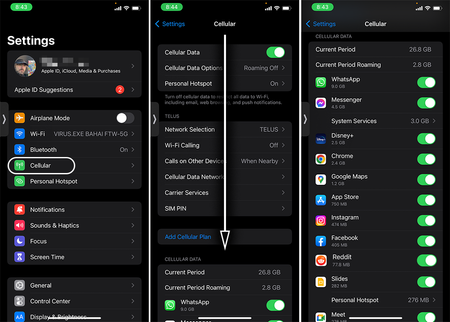
Whether you're on an unlimited data plan and just burned through all your high-speed data, or have a limited bucket of data and need to micro-manage your usage, these tips will help you get started and stay on top of your usage on your iOS device. What's using my data? First, we'll want to get an overview of what is using up all that data via the following steps: Go to Settings Tap on Cellular Scroll down You should now see an overview of all the apps using mobile data on your device and you can then adjust your usage patterns accordingly. For example, if a video streaming application is using most of your data, then restrict your streaming to only when you're connected to Wi-Fi or pre-download the shows/movies you want to watch on the go. Disable Background App Refresh Many apps continue to use data even when you've moved on to another app. This is referred to as background data usage and it can easily add up as you pile on the apps running in the background. Disabling Background App Refresh stops all that. Here's how to disable it: Go to Settings Tap on General Tap on Background App Refresh Select WiFi or Off. Turning Data Off If you can't afford to have a single extra megabyte more using up data then this will put an immediate halt on all Mobile Data usage until you say so. Go to Settings Tap on Cellular Swipe the Cellular Data slider to the off position Additional Steps In addition to the above here are a few other things to consider: Disable Auto-Play for videos on your Social Media platforms. (Facebook, Instagram, etc.) Pre-download your music, tv shows, or videos when on Wi-Fi. Be very vigilant with your usage when using your phone as a Hot Spot! Try to close apps when your done with them. When it comes to apps & system upgrades, only update over Wi-Fi. Turn off Wi-Fi Assist! Check out this article on how to go about doing that and learn more about the feature. EN version3.2KViews1like0Comments