Apple
8 TopicsSoftware Update Schedule
All dates are approximate and subject to change. Please note posted dates reflect when the update is targeted for release but can take a few weeks to roll out to all devices. Device Target Date Update Moto RAZR+ (2023) Feb 10 Security Updates Moto G Play (2024) Feb 10 Security Updates Samsung Galaxy Watch4 40mm Feb 10 Optimizations + Security Updates Samsung Galaxy Watch4 44mm Feb 10 Optimizations + Security Updates Samsung Galaxy Watch4 Classic 42mm Feb 10 Optimizations + Security Updates Samsung Galaxy Watch4 Classic 46mm Feb 10 Optimizations + Security Updates Samsung A15 Feb 13 Security Updates Samsung A16 Feb 13 Security Updates Samsung Tab S9 FE Feb 13 Security Updates Samsung A17 Feb 13 Security Updates Samsung GS21 Feb 13 Security Updates Samsung GS21+ Feb 13 Security Updates Samsung GS21 Ultra Feb 13 Security Updates Moto Edge (2024) Feb 16 Security Updates Moto RAZR+ (2024) Feb 16 Security Updates Samsung Tab A11+ Feb 17 Optimizations + Security Updates Moto G (2025) Feb 23 Security Updates Samsung Z Flip5 Feb 27 Security Updates Samsung Z Fold5 Feb 27 Security Updates Samsung Z Flip6 Feb 27 Security Updates Samsung Z Fold6 Feb 27 Security Updates Samsung Z Flip7 Feb 27 Security Updates Samsung Z Fold7 Feb 27 Security Updates Samsung GS25 Feb 27 Security Updates Samsung GS25+ Feb 27 Security Updates Samsung GS25 Ultra Feb 27 Security Updates Samsung GS25 Edge Feb 27 Security Updates Samsung GS24 FE Feb 27 Security Updates Samsung GS25 FE Feb 27 Security Updates Samsung XCover6 Pro Feb 27 Security Updates Samsung XCover7 Pro Feb 27 Security Updates Samsung Watch8 40mm Mar 3 Optimizations + Security Updates Samsung Watch8 44mm Mar 3 Optimizations + Security Updates Samsung Watch8 Classic 46mm Mar 3 Optimizations + Security Updates Samsung Watch8 40mm Mar 3 Optimizations + Security Updates Samsung watch8 44mm Mar 3 Optimizations + Security Updates Samsung Watch8 Classic 46mm Mar 3 Optimizations + Security Updates Google Pixel 6 Mar 3 Optimizations + Security Updates Google Pixel 6 Pro Mar 3 Optimizations + Security Updates Google Pixel 6a Mar 3 Optimizations + Security Updates Google Pixel 7 Mar 3 Optimizations + Security Updates Google Pixel 7 Pro Mar 3 Optimizations + Security Updates Google Pixel 7a Mar 3 Optimizations + Security Updates Google Pixel 8 Mar 3 Optimizations + Security Updates Google Pixel 8 Pro Mar 3 Optimizations + Security Updates Google Pixel 8a Mar 3 Optimizations + Security Updates Google Pixel 9 Mar 3 Optimizations + Security Updates Google Pixel 9 Pro Mar 3 Optimizations + Security Updates Google Pixel 9 Pro XL Mar 3 Optimizations + Security Updates Google Pixel 9 Pro Fold Mar 3 Optimizations + Security Updates Google Pixel 9a Mar 3 Optimizations + Security Updates Google Pixel 10 Mar 3 Optimizations + Security Updates Google Pixel 10 Pro Mar 3 Optimizations + Security Updates Google Pixel 10 Pro XL Mar 3 Optimizations + Security Updates Google Pixel 10 Pro Fold Mar 3 Optimizations + Security Updates Google Pixel 10a Mar 3 Optimizations + Security Updates Samsung GS24 Mar 6 Security Updates Samsung GS24+ Mar 6 Security Updates Samsung GS24 Ultra Mar 6 Security Updates Samsung GS23 Mar 6 Security Updates Samsung GS23+ Mar 6 Security Updates Samsung GS23 Ultra Mar 6 Security Updates Samsung A56 Mar 6 Security Updates Samsung Z Flip4 Mar 6 Security Updates Samsung Z Fold4 Mar 6 Security Updates MOTO Edge (2025) Mar 10 Android 16 Update MOTO RAZR (2025) Mar 10 Android 16 Update MOTO G 5G (2023) Mar 11 Security Updates Samsung GS23 FE Mar 13 Optimizations + Security Updates Samsung GS22 Mar 13 Optimizations + Security Updates Samsung GS22+ Mar 13 Optimizations + Security Updates Samsung GS22 Ultra Mar 13 Optimizations + Security Updates Samsung A53 Mar 13 Optimizations + Security Updates Samsung A54 Mar 13 Optimizations + Security Updates Samsung Z Flip3 Mar 13 Optimizations + Security Updates Samsung Z Fold3 Mar 13 Optimizations + Security Updates MOTO G 5G (2024) Mar 17 Security Updates Samsung Watch7 40mm Mar 17 Optimizations + Security Updates Samsung Watch7 44mm Mar 17 Optimizations + Security Updates Samsung Galaxy Watch Ultra Mar 17 Optimizations + Security Updates Last updated: Mar 13, 2026 Get notified first about our schedule updates by clicking on the bell icon in the upper right part of this page to "Follow" this topic. Version Fr411KViews6likes0CommentsHow To Block Unwanted Calls and Texts on iPhone
Unwanted calls and messages disrupt your day. Your iPhone includes built-in blocking features to stop these contacts permanently. Block a Text Message Sender Open the message conversation from the contact you want to block Tap the name or number at the top of the screen Tap the info button (ⓘ) in the top right corner Scroll to the bottom and select "Block this Caller" The contact can no longer send you messages or call you. Block a Phone Number Open the Phone app and go to your recent calls Find the number you want to block in your call history Tap the info icon (ⓘ) next to that number Scroll to the bottom and select "Block this Caller" This number will no longer be able to reach you by call or text. Unblock a Contact Open Settings on your iPhone Scroll down and tap "Phone" Select "Blocked Contacts" Tap "Edit" in the top right corner Tap the red minus sign (−) next to the contact you want to unblock Tap "Unblock" when it appears The contact can now reach you again by call and text. When to Contact TELUS If you continue receiving spam calls despite blocking numbers, ask TELUS about Call Control. This free feature adds an extra layer of protection by requiring unknown callers to press a number before connecting to you, which stops most robocalls automatically. Version Fr245Views0likes0CommentsHow to Find Your Device's MAC Address
Follow these device-specific instructions to locate your MAC (Media Access Control) address for network setup and troubleshooting. Android Devices Android Tablets: Open Settings from home screen Tap About tablet Select Status Find Wi-Fi MAC address Android Phones: Open Settings Select About phone Tap Status Locate Wi-Fi MAC address Apple Devices iPhone/iPad: Open Settings Tap Wi-Fi Tap the ⓘ when connected to your network Find "Wi-Fi Address" MacBook Pro: Open System Preferences Select Wi-Fi Tap the ⓘ when connected to your network Look for "Wi-Fi Address" Windows 11 Click your start menu Go to Settings Network & Internet Tap on your network underneath the Wi-Fi toggle Scroll down until you see Physical Address (MAC) Important Notes MAC address is 12 characters long Appears as alphanumeric code Unique for each device Required for network setup When to Contact TELUS Contact TELUS support if you: Are unable to find the MAC address Experience network connection issues Have device registration problems Need setup assistance256Views0likes0CommentsApple Live Voicemail for iOS 17
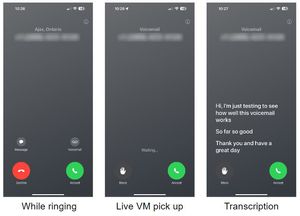
Apple Live Voicemail for iOS 17 With iOS 17, Apple introduced Apple Live Voicemail. This feature gives iPhone users the ability to see real-time transcription as someone leaves a voicemail, and the opportunity to pick up while the caller is leaving their message. Live Voicemail will be toggled ON by default when a compatible device* has been upgraded to iOS 17. To turn Live Voicemail ON or OFF: Settings > Phone > Live Voicemail > On / Off For more information regarding Apple Live Voicemail for iOS 17, please visit our Support pages: ENGLISH FRENCH Compatible devices include the iPhone XS family and newer. Notes: Live Voicemail only works in Canada while the device is powered on (otherwise calls will default to regular TELUS voicemail service). Live Voicemails are stored on the device and not on TELUS' voicemail service. Live Voicemail will currently only work if iPhone language is set to EN. FR Version259KViews0likes0CommentsSoftware Update Life-Cycle
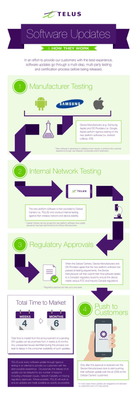
When a device is chosen to receive a software update, we make sure it's set up to deliver the best possible customer experience. To achieve this, the update goes through several steps involving multiple parties before it's released. Typically, a second version of the software is created based on feedback from TELUS and the device manufacturer. This new version is tested again to fix any issues found earlier. For a look at some of the upcoming device software releases, please see the Software Update article. Here’s a look at the life cycle of a software update: *Originally a blog by our Product Manager, MarcTELUS, we've republished the software lifecycle as an article as it still holds true today.56KViews1like0CommentsUltimate Guide - Transferring Content To Your New Phone
Most of us will upgrade our devices at some point and we'll all face the same dilemma: how do we transfer our info to the new device? For those of you going through this for the first time, we’ve compiled a list of resources from various manufacturers to help you get started. Apple iPhone to iPhone Apple Support has a great video HERE with some quick tips on how to transfer if you still have your old iPhone, and if you don't. For your additional reference, HERE is a handy Apple how-to guide for all things iOS. Switching over from Android to iOS Apple makes it very easy for you to switch over from your Android device. Make sure both devices are charging and connected to the same Wi-Fi network. Then download the Move to iOS app available on the Google Play Store to your Android device and you're almost there. Check out THIS link for all the steps. Google Pixel devices Switching from iOS and/or “other” devices Transferring content to your new Pixel device depends largely on the content itself. Google has put together a step by step guide on how to import your photos, music, contacts, and email/messages at their website HERE. Need to activate a new SIM card for your new device? Check out our guide on how to do that HERE. Is there an official content transfer process missing for a particular manufacturer? Leave a comment below and we’ll review it and update this article! Need more help? Contact us HERE for further assistance, or reach out to us over at our Facebook page and our team can help! FR version76KViews0likes7CommentsWi-Fi Assist
Wi-Fi Assist Wi-Fi Assist is a feature that optimizes the handoff between a Wi-Fi network and your carrier's cellular data network. In the past, when your device left the effective range of a Wi-Fi network, it would try to maintain connection to that network as long as it could, even when the network's signal became too weak to be effective. Then, you'd have two choices: either turn Wi-Fi off or wait until your device was completely out of range and it would switch over to the cellular data network. How does Wi-Fi Assist work? Wi-Fi Assist regularly checks your device's Wi-Fi connection to determine signal strength. If the Wi-Fi signal performance drops, Wi-Fi Assist automatically switches to a cellular data connection until the Wi-Fi signal improves. By doing so, the handoff between your Wi-Fi and cellular data connections would be automatic and smooth. How can Wi-Fi Assist impact me? As this feature may increase the amount of time spent on the cellular data network, there is potential for higher data usage, and the Wi-Fi signal may disconnect more frequently if your device's Wi-Fi connection drops below a specific strength. How to turn Wi-Fi Assist ON or OFF Wi-Fi Assist is usually turned on by default. Once enabled, it operates in the background automatically. You can turn it on or off anytime by following these steps: Apple/iOS 1. Tap Settings. 2. Tap Cellular. 3. Scroll down to find the Wi-Fi Assist toggle. 4. Tap to turn the feature ON or OFF. Android 1. Go to your Start screen and swipe up or down to open the menu. 2. Tap Settings. 3. Tap Connections. 4. Tap Wi-Fi. 5. Tap to enable Wi-Fi. 6. Choose the Options symbol and select Advanced. 7. Tap to disable Switch to mobile data. Important Notes Wi-Fi Assist does not activate for some third-party apps that might use large amounts of data. For example, apps with audio or video streaming functionality, or email apps with features such as attachment downloads. If you are data roaming outside of Canada, Wi-Fi Assist will not automatically switch to a cellular data connection. For device specific data management tips, you can also check out our articles for iOS and Android. Version FR5.1KViews1like0CommentsMobile Klinik Device Checkup Tool
Mobile Klinik Device Checkup Tool The Mobile Klinik Device Checkup app has a number of great features. Not only can you optimize and troubleshoot hardware/software issues with your Android and iOS device, you can even book repair appointments, find the nearest Mobile Klinik store, and even check out your smartphone's resale value. Here's all the info you need to get started. How to download the Mobile Klinik app 1. Ensure that you have an active cellular or Wi-Fi connection. 2. Visit the Google Play store (Android) or Apple App store (iOS) and search for 'Mobile Klinik Device Checkup'. 3. Alternatively, if you select the new Diagnostics link available in the app itself you'll either be brought directly to the Google Play store or Apple App store prompting you to install, or have the app automatically launch if it's already installed. How to run a device checkup 1. Launch the Mobile Klinik Device checkup app (once installed) by tapping the icon from your smartphone's home screen. 2. *First time users* Accept the Terms & conditions and allow data usage access to use the app. Do this by following the prompts to open Settings (you'll be brought to the Usage Data Access section), find and select the app, tap to allow usage tracking, and go back to return to the app. 3. All tests will be selected by default, though you may select/deselect which tests you wish to perform including: Battery (battery health and usage) Storage (internal/external memory usage) Connectivity (Wi-Fi, Bluetooth, SIM) Data (data usage) Device (software updates and security) 4. Click Start at the bottom of the screen. *Note: The battery drain test (unless skipped on Android) will run for approx. 30 seconds and maximize your screen brightness, flash, and vibration functions to assess battery health. 5. Results summary will be displayed and colour-coded by severity level: Device alerts and critical updates - Red or Yellow Optimization recommendations - Green 6. Select the green chevron next to a results to see specific info about the test. How to check device value and repair options Device Value Tap 'Sell Your Phone' from the app home screen. Select 'Continue'. Complete the interactive tests and questions about your smartphone. Receive the device's value *Note: New devices may not retrieve a value, and value given is an estimate and will not be confirmed until you visit the nearest Mobile Klinik store. Repair Options Tap 'Repair' from the app home screen. Select the repair journey you need: Find a store, Book an appointment, or Call for a quote. Version FR3.6KViews1like0Comments