Mobility
15 TopicsReporting Spam
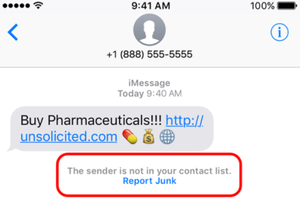
Here at TELUS we are constantly working to prevent spam texts and other fraudulent communications from reaching our customers. There are actions you can take as well to not only spot a spam message but to report it to our team for investigation. The main things to remember if you receive a spam text message are: Forward the spam message to the shortcode 7726 (SPAM). If you're receiving more than one, we recommend putting 7726 into your contact list so it's easily remembered. Don't respond directly to the number that sent you the spam text. This will alert the spammer that your number is genuine and active. If you're not able to view the number or if it's email spam, forward us the entire message (along with the subject header if it's an email). How To Forward a Spam Text From Your Phone To 7726 iPhone 1. Touch and hold the message 2. Select More 3. Select the message you want to forward, then select the arrow in the bottom right corner 4. Enter 7726 5. Select Send Android / Windows 1. Press the message (be careful not to activate / tap on a link) 2. Choose Forward (from the menu) 3. Forward to 7726 *Reporting spam to 7726 is free. Messages forwarded to 7726 don't count toward your data or Messaging bucket iMessage Spam Reporting The key difference between an iMessage and an SMS message is the colour of the text. An iMessage text appears in a blue bubble, whereas an SMS message appears in a green bubble. If the spam text you receive appears in green, you may need to report it using the steps above. If the spam is an iMessage and comes from someone not saved in your contacts, you'll see a message stating that "the sender is not in your contact list" and you'll have the option to Report junk. Alternatively, you can send an email to [email protected] with this information: A screenshot of the message The email address or phone number that sent you the iMessage The date and time you received the spam iMessage Android Spam Reporting To report a spam message on your Android device: On your Android phone or tablet, open the Messages app Touch and hold the conversation you want to report Tap Block --> Report Spam --> OK You can also open a conversation and report it as spam. From the conversation, tap More Options --> Details --> Block & Report Spam --> OK Please note: This is for SMS/MMS spam only. If you receive email spam, it can be reported directly by forwarding it to [email protected] If you have further questions about spam messaging or any other messages you receive, don't hesitate to ask the community at our Neighbourhood Forums or reach out to us over at our Facebook page as well. FR version8.5KViews4likes2CommentsGet To Know The My TELUS App
Get To Know The My TELUS App Did you know we have a highly rated app that allows you to check your bills, usage, and much more at the tip of your fingers? We know that your time matters, and the My TELUS app has got you covered! Let's take a look at everything you can do with the app. The benefits of using the My TELUS app Making changes to your plan & add-ons Viewing your bill & usage details Setting up data notifications & limits Checking/keeping track of your data usage Reduced wait times on the phone How to create & access your account 1. Download the My TELUS app on your iPhone or Android device or text “app” to 54555 to download. Alternatively, you can also access the web version here. 2. Once downloaded, you’ll have the option to sign up for My TELUS or log in (if you’ve already created an account in the past). 3. Log in and you’re ready to go! You can now make changes to your services & view your usage details. If you have any questions, reach out to us over on our Facebook account, or send a private message to our TELUS_Support handle and we'll be around to help! FR version6.5KViews1like0CommentsWi-Fi Assist
Wi-Fi Assist Wi-Fi Assist is a feature that optimizes the handoff between a Wi-Fi network and your carrier's cellular data network. In the past, when your device left the effective range of a Wi-Fi network, it would try to maintain connection to that network as long as it could, even when the network's signal became too weak to be effective. Then, you'd have two choices: either turn Wi-Fi off or wait until your device was completely out of range and it would switch over to the cellular data network. How does Wi-Fi Assist work? Wi-Fi Assist regularly checks your device's Wi-Fi connection to determine signal strength. If the Wi-Fi signal performance drops, Wi-Fi Assist automatically switches to a cellular data connection until the Wi-Fi signal improves. By doing so, the handoff between your Wi-Fi and cellular data connections would be automatic and smooth. How can Wi-Fi Assist impact me? As this feature may increase the amount of time spent on the cellular data network, there is potential for higher data usage, and the Wi-Fi signal may disconnect more frequently if your device's Wi-Fi connection drops below a specific strength. How to turn Wi-Fi Assist ON or OFF Wi-Fi Assist is usually turned on by default. Once enabled, it operates in the background automatically. You can turn it on or off anytime by following these steps: Apple/iOS 1. Tap Settings. 2. Tap Cellular. 3. Scroll down to find the Wi-Fi Assist toggle. 4. Tap to turn the feature ON or OFF. Android 1. Go to your Start screen and swipe up or down to open the menu. 2. Tap Settings. 3. Tap Connections. 4. Tap Wi-Fi. 5. Tap to enable Wi-Fi. 6. Choose the Options symbol and select Advanced. 7. Tap to disable Switch to mobile data. Important Notes Wi-Fi Assist does not activate for some third-party apps that might use large amounts of data. For example, apps with audio or video streaming functionality, or email apps with features such as attachment downloads. If you are data roaming outside of Canada, Wi-Fi Assist will not automatically switch to a cellular data connection. For device specific data management tips, you can also check out our articles for iOS and Android. Version FR5.1KViews1like0Comments